
Microsoft 365 integration
A CRM that plugs into your Microsoft 365 mailbox
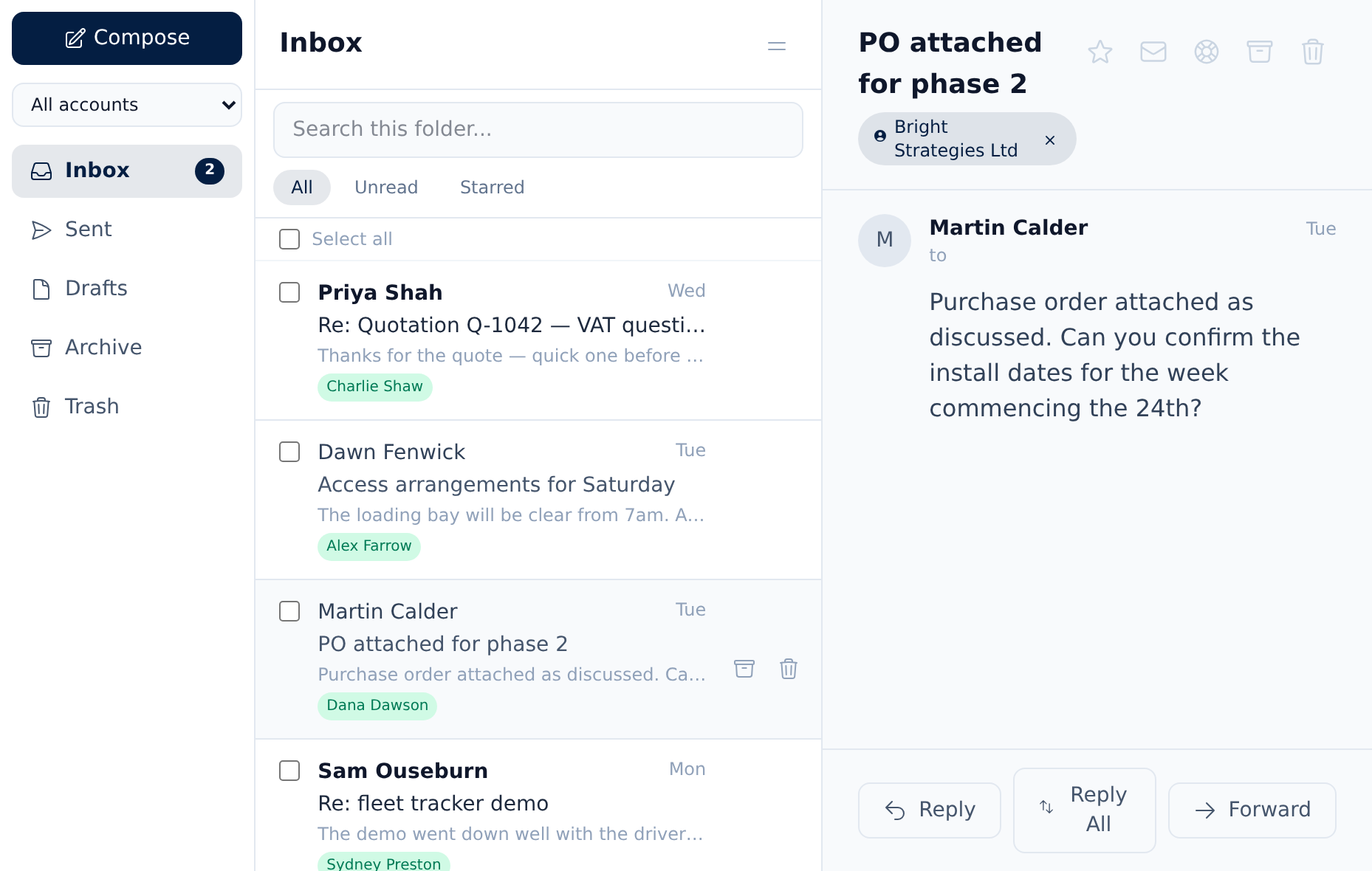
Your customers already write to an Outlook address. Beagle CRM connects to that Microsoft 365 mailbox with a normal Microsoft sign-in, picks up new mail every minute and files each message against the customer who sent it. When you answer from Beagle, the reply leaves through Microsoft's own mail servers, from the address your customer already knows.
No password is handed over and nothing is installed in Outlook.
14-day free trial with every feature. No card required.
The problem
Why Outlook and a CRM drift apart
-
Copy and paste as a filing system.
Someone pastes the important bits of an email into the CRM, when they remember. The rest of the conversation never arrives.
-
Plug-ins that only work on one desk.
An Outlook add-in on one laptop doesn't help the colleague on a phone, or the one who joined last week.
-
Mailbox passwords stored in other apps.
Older integrations wanted the mailbox password. Microsoft 365 has been turning that kind of sign-in off, and it was never a comfortable thing to hand over.
-
A CRM sending mail from a strange address.
Messages that go out from a no-reply domain look like marketing, and the customer's answer goes nowhere useful.
What's included
What the connection does
-
Microsoft sign-in, not a stored password
Beagle uses Microsoft's OAuth sign-in. You approve the permissions on Microsoft's own page; Beagle keeps the resulting tokens encrypted and never sees your Microsoft password.
Connecting a Microsoft 365 mailbox -
New mail every minute
Beagle checks the mailbox's Inbox folder once a minute and brings in anything it hasn't seen, skipping messages you've already deleted in Outlook.
-
Filed against the customer
Each message is matched by sender address to a customer or contact, and to that customer's open lead. The day-to-day workflow from there is on the shared inbox page.
How the shared inbox works -
Replies from your own address
Mail written in Beagle is sent through Microsoft 365's authenticated mail service as the connected mailbox, with the threading headers that keep it in the same conversation in your customer's mail app.
-
Sales or support
Connect a mailbox to the sales inbox, or to customer care, where each new email opens a service-desk case with its response targets running.
How support cases work -
Tokens kept fresh
Microsoft access tokens are short-lived, so Beagle renews them on a schedule and again just before each check and each send. If Microsoft refuses a renewal, the mailbox is marked with the error in settings instead of failing silently.
Set up once
Connecting a mailbox, step by step
-
Open Organisation Settings, then Inboxes.
An Admin or Agent chooses Connect Microsoft 365 under the sales inbox or the customer care inbox.
-
Sign in on Microsoft's page.
Use the account whose mailbox you want in Beagle. Microsoft lists the permissions Beagle is asking for (below) and asks you to approve them.
-
Back in Beagle, the mailbox is listed.
Its address, status and the time of the last check appear in settings. Within a minute or so, mail from the Inbox folder starts to arrive in the team inbox. Older messages come in as history, without raising a follow-up task or a support case for each one.
-
Reconnect or remove it whenever you like.
If a mailbox ever shows an error, signing in to Microsoft again from settings restores it and checking resumes. Deleting the mailbox removes the stored tokens, stops all checking and sending, and takes that mailbox's emails out of Beagle.
Unlike Google Workspace, there's no app for your IT team to register first: Beagle uses its own Microsoft app registration.
Permissions
What Beagle asks Microsoft for
These are the exact permissions Beagle requests when a mailbox is connected.
| Permission requested | Why |
|---|---|
| openid, email, profile | To learn which mailbox address you signed in with. |
| offline_access | So Beagle can renew access without you signing in every hour. |
| IMAP.AccessAsUser.All | Exchange Online permission to read new messages in the mailbox over IMAP. |
| SMTP.Send | Exchange Online permission to send replies and new emails as that mailbox. |
Beagle doesn't ask for your calendar, your contacts, your files, Teams or the Microsoft Graph API. It asks only to read and send mail for the mailbox that signs in.
Direction
What syncs, and which way
- New messages in the Inbox folder come from Microsoft 365 into Beagle every minute.
- Mail written in Beagle (reply, reply all, forward or a new email) goes out through Microsoft 365 to the customer when you press send.
- Other folders such as Sent Items, Archive and subfolders are not read.
- Calendar and Outlook contacts are not synced in either direction.
- Read, starred and archived status stays in Beagle and isn't written back to Outlook.
Tasks with due dates can still appear in Outlook's calendar through Beagle's private calendar feed (Outlook calls it Subscribe from web). That is a one-way, read-only feed, separate from the mailbox connection, and every user can set up their own. Setting up the calendar feed.
Clear edges
What it doesn't do
- One person's mailbox per sign-in. The connection links the mailbox of the account that signs in. A Microsoft 365 shared mailbox (one with no sign-in of its own) can't be connected yet, so a sales@ address needs to be a mailbox someone can sign in as.
- The Inbox folder only. Mail that Outlook rules move into other folders, and mail you send from Outlook itself, stays in Outlook.
- IMAP and authenticated SMTP must be allowed. Beagle reads over IMAP and sends over authenticated SMTP, so both need to be switched on for the mailbox in Microsoft 365.
- No calendar, contacts or Teams. Worth repeating, because buyers searching for an Outlook CRM often expect them.
- Campaigns need Authenticated SMTP too. A Microsoft 365 campaign sender sends over SMTP with the same Microsoft sign-in, so Authenticated SMTP must be enabled for that mailbox in your tenant; if it isn't, Beagle shows a clear error saying so.
- No Microsoft sign-in for Beagle itself. People sign in to Beagle with their Beagle login; the Microsoft sign-in is only for connecting a mailbox.
Pricing
One plan, every feature
£29 per user per month, or £290 per user per year (two months free)
The Microsoft 365 connection is part of the one plan, with nothing extra to buy.
All prices exclude VAT.
Questions, answered
Frequently asked questions
- Does Beagle CRM work with Outlook?
- Yes, with mailboxes hosted on Microsoft 365. Beagle connects to the mailbox itself, so it works however your team reads mail: Outlook on the desktop, on the web or on a phone. There is no add-in to install.
- What permissions does Beagle ask for?
- Sign-in details to identify the mailbox, offline access so the connection keeps working, and Exchange Online permission to read mail over IMAP and send it over SMTP. It doesn't ask for calendars, contacts, files or Teams.
- Can we connect a shared mailbox like sales@?
- Not directly yet. The connection uses the mailbox of the person who signs in, and a Microsoft 365 shared mailbox has no sign-in of its own. A sales@ address that is a full mailbox you can sign in to works.
- How quickly do new emails appear?
- Beagle checks the Inbox folder every minute, so a new message normally shows up in the team inbox within a minute or two of arriving in Outlook.
- Who can connect a mailbox?
- Only Admins and Agents can connect a mailbox, from Organisation Settings. Once it's connected, the whole team can read it, and Admins and Agents can send from it.
- Does it sync our calendar or contacts?
- No. Only mail is synced. Tasks with due dates can be shown in Outlook's calendar through a private calendar link that each user subscribes to themselves.
Related
- Shared inbox CRM One team inbox for sales@ and support@, with every email linked to the customer who sent it. Reply from your own mailbox; support email becomes a case.
- CRM for small businesses One CRM for a small UK team: leads, customers, quotes, VAT invoices, a shared inbox and a service desk. £29 per user, every feature, 14-day free trial.
- CRM for service businesses Win the work, deliver it as a project and support the customer after, in one CRM. Service desk with SLA clocks, customer project portals and time logging.
- CRM with Google Workspace Connect Google Workspace mailboxes to Beagle CRM. Gmail is read and sent from inside the CRM, filed against the right customer, via a Google app you own.
- Service desk Numbered support cases with priorities, owners and your own categories, SLA clocks in business hours, email replies and a no-login customer case portal.
Bring your Microsoft 365 mail into the CRM
Start a 14-day free trial with every feature and no card required, or book a demo and we'll connect your first mailbox with you.