
Email integration
Inbox
Sales mail in BeagleCRM
Connect your sales inbox via Google OAuth, Microsoft OAuth, or IMAP. Inbound sales mail appears in the Inbox alongside your customer records, so you can read threads, reply, forward, compose new messages, and link conversations back to your CRM data without leaving BeagleCRM.
Who can do what
Everyone on the team can read the inbox. The actions that send mail or change what is in it — Compose, Reply, Reply All, Forward, archive, delete, bulk delete, creating a customer from a message, and connecting or editing accounts — are enforced for Admins and Agents only, and are refused for a Viewer however they are attempted.
A Viewer sees a read-only inbox in practice: the buttons for those actions are not shown to them. Three lighter actions — starring a message, marking it unread, and raising a Service Desk case from it — are hidden from Viewers in the interface but are not currently blocked at the server, so treat the read-only inbox as a matter of what Viewers are offered rather than a security boundary. If a message must not be seen at all, do not give the person access to the inbox.
First-time connection
From Organisation Settings → Inboxes, find the Sales inbox and choose Connect Microsoft 365 and complete OAuth. For any other provider, open Add email account manually on the same panel and enter the IMAP and SMTP details yourself. Reconnect if your provider revokes the token, or reopen that panel if the mailbox credentials change.
Gmail and Google Workspace take one extra step, once per organisation. Connect Google stays greyed out until an administrator registers your own Google OAuth client on that same panel — Google reserves mailbox access for apps that have passed a paid annual assessment, unless the app belongs to your own Workspace. If the button looks disabled, that is why. The Google email setup guide walks through it in about ten minutes. Microsoft 365 and IMAP need nothing extra.
Search, filter, and triage
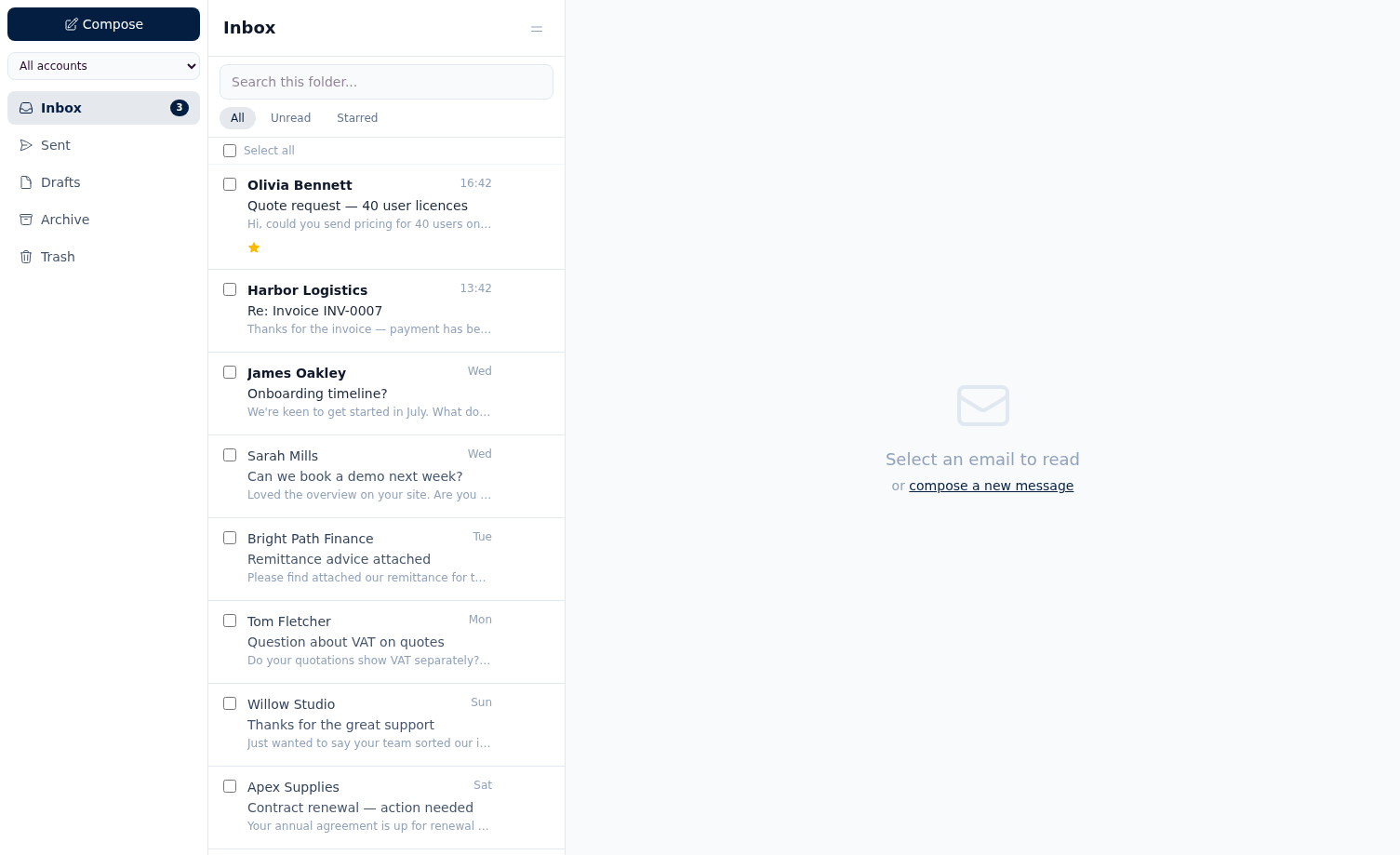
The Inbox supports free-text search, quick filters for All, Unread, and Starred, plus an account picker that lists every connected inbox — it is there even with a single account. Open an email to mark it as read, star it, mark it unread again, or delete it.
Reply, reply all, forward, and compose
Use Compose for a new outbound email, choose the sending account, and optionally add CC and BCC recipients. From an open thread, you can Reply, Reply All, or Forward without leaving the inbox view.
Link emails to customers
If an email is not linked yet, you can create a customer directly from the sender and attach the email to that new record. Linked emails show the customer badge and let you jump straight to the customer record or unlink it later.
Clean up in bulk
The list view supports multi-select so you can select all visible emails and bulk delete them when tidying the inbox. From a support inbox, you can create a Service Desk case from the message and continue the support workflow in the Service Desk section above.