
Competitive intelligence
Competitors
SWOT → Linked deals → Win / loss
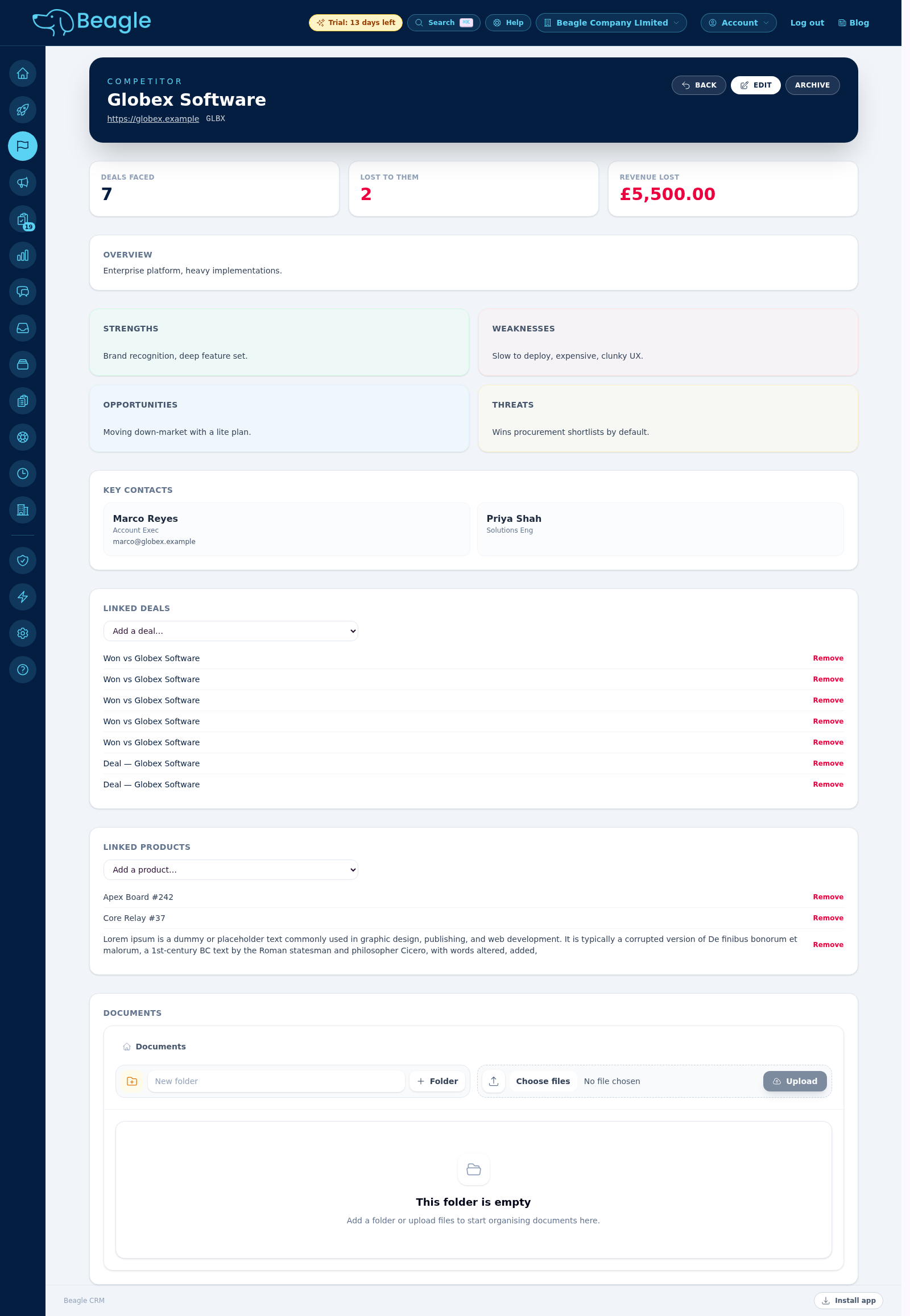
The Competitors section gives every competitor a first-class record: a SWOT profile (strengths, weaknesses, opportunities, threats), key contacts, the products you go head-to-head on, and the deals you have faced them in. When you close a deal as Lost, you can record exactly who you lost it to — and that flows straight into win/loss analytics.
Building a competitor record
Open Competitors from the sidebar or the Sell area of your dashboard and choose New competitor. Capture the name, website and ticker, then fill in the four SWOT panels. Add as many key contacts as you like — each holds a name, title, email and phone. Competitors you no longer track can be archived (kept for history) and reactivated later.
Linking deals & products
On a competitor's page, link the deals you have faced them in and the products you compete on. "Faced" can be many deals per competitor — it forms the denominator of the win rate.
Recording who you lost to
When you mark a lead as Lost, pick the competitor under Lost to competitor. The deal's value becomes "revenue lost" against that competitor. The free-text competitor note still works alongside it.
Win / loss analytics
The Competitor analytics page rolls everything up for the whole organisation: total revenue lost, deals lost, your Top competitor, and a per-competitor breakdown of deals faced, deals lost, revenue lost and win rate.

Tip: Competitors is a switchable section. If a team member can't see it, an admin can enable the Competitors module for them from the Team page in the main navigation.