
Quoting guide
Quotations
Created → Sent → Won
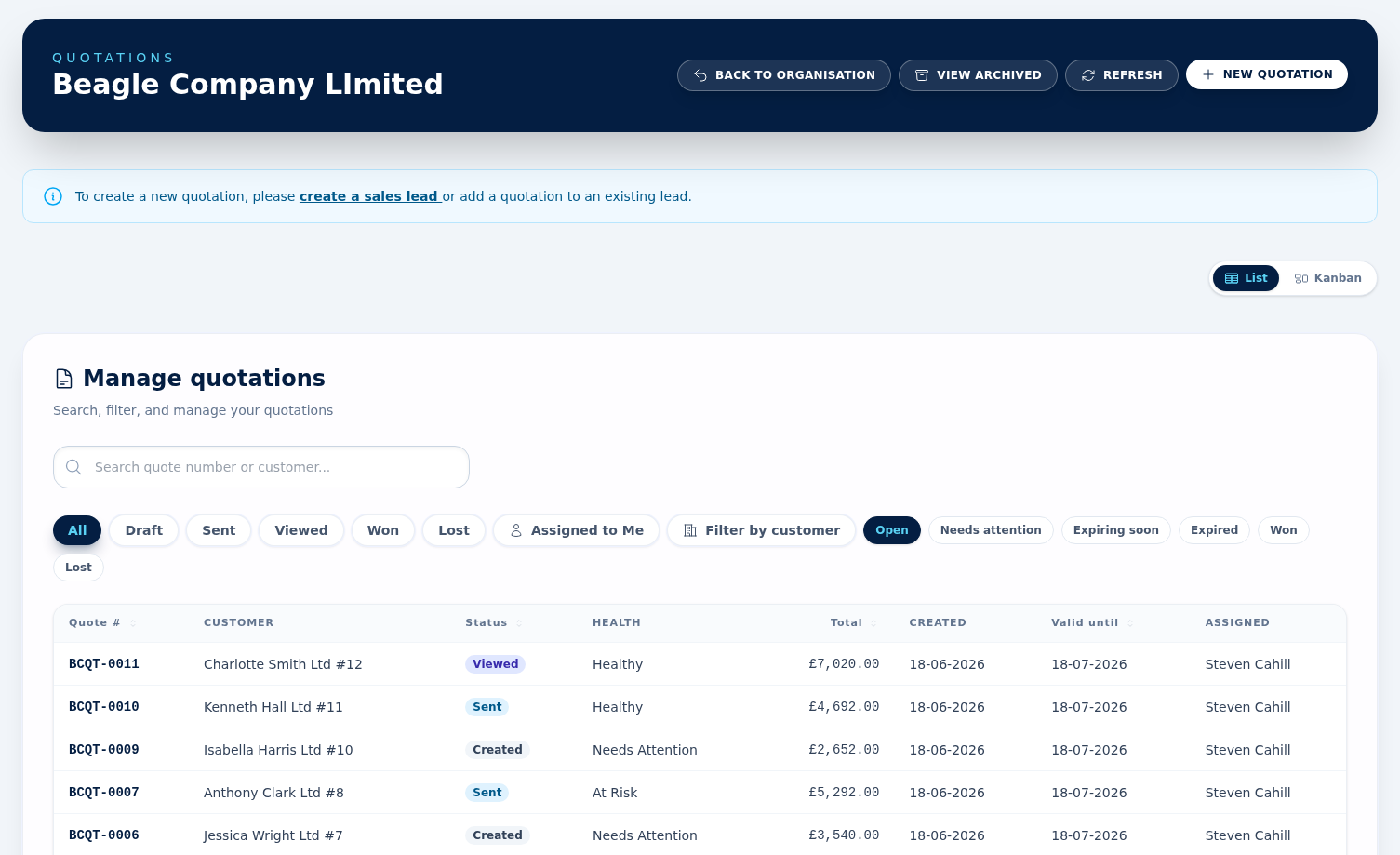
Quotations move through five statuses. On the quotations list and on the quote itself they are labelled Created, Sent, Viewed, Won and Lost. The archived quotations view is the one place that shows the older wording — Draft, Accepted and Rejected — for the same three statuses. Each quote belongs to a customer (or lead) and contains product or service line items, automatic VAT and a valid-until date.
Most of the movement happens automatically. Viewed sits between Sent and Won and flips on its own the first time the customer opens your quotation email, tracked by an invisible pixel in that email. Opens registered within 30 seconds of sending are ignored, so Apple Mail's privacy pre-fetch does not mark a quote as read before anyone has looked at it. The change is recorded in the audit trail as a system action. Viewed has its own status filter and pipeline-board column, and quotes in it still count as live work alongside Created and Sent.
Status is not entirely hands-off, though. Mark as Won and Mark as Lost set it deliberately, and on the Kanban view of the quotations list an Admin or Agent can drag a quote straight from one column to another — including into Viewed, with no email opened at all. A Viewer can look at the board but cannot drag cards. Dragging only moves the badge: it never creates a sales order and never emails anybody, so use Mark as Won when you actually want the order raised. The one column you cannot drag into is Lost, because a lost outcome must carry a reason and a drag has nowhere to ask for one; the drop is refused with a generic error. Use Mark as Lost instead.
Because it depends on images loading, treat Viewed as a positive signal rather than a guarantee: a customer whose email client blocks images can read a quote without it ever leaving Sent.
Every quotation needs a lead
Linked Lead is a required field on the new-quotation form — a quotation cannot be saved without one. Pick the customer first: the lead list is filtered to that customer, and if they have no leads yet the form says so and you will need to create a lead first. This is why the quotations list points you at the Leads screen to start a new quote, and it is the most common reason a first attempt at creating one does not save.
Create a quotation
In normal use, quotations are raised from a lead so the customer, lead link, and primary contact are already in place. Set Valid until, then add line items. Search the catalogue to add product items with preset pricing, or add free-text service lines. A saved quotation starts at Created, and its health panel flags it as Draft not sent until you send it.
Stock while you quote
If your organisation has the Purchasing module, the product picker on a new or edited quotation shows In stock: N under each stock-tracked product, and turns that line red once the figure is at or below the product's reorder level. It is a hint only — quoting never moves stock. Products that are not stock-tracked, and organisations without Purchasing, simply do not show the line.
Health, expiry & archived quotes
The quotations list lets you search by quote number or customer, filter by status, customer, ownership, and quote health, and separate out expired or expiring-soon work. Admins can also review archived quotations from the archive view.
Send by email or PDF
Send Email emails the customer with the PDF attached and stamps the quote as sent. Download PDF generates the document without emailing. Re-sending tracks how many times the quote has been sent.
Accept, reject or revise
Mark as Won and Mark as Lost are both available while the quote is Created, Sent or Viewed — you do not have to send a quote first. Marking it lost asks for a reason. A won quote can then be converted to a sales order, or invoiced directly with Invoice. Use Revise Quote to create a new revision while keeping the previous version and sent history.
What Mark as Won actually does
Mark as Won is not just a badge change, and there is no second step afterwards. It opens a Confirm order panel that says, in its own words, “This creates a confirmed Sales Order and emails the customer an order confirmation.”
- Optionally choose a Reason and add any Notes. One list serves both outcomes — Price, Competitor, No Decision, Went Quiet, Poor Fit, Timing, Budget, Accepted As Quoted, Accepted With Changes and Other. A reason is only required when you mark a quotation lost; a won outcome saves without one.
- Press Confirm order & notify customer.
- BeagleCRM creates the sales order at Confirmed (not Pending), emails the customer an order confirmation, and takes you to the Sales Orders list with the new order on it. If the customer has no email address on file the order is still created and you are told nobody was notified.
Because the order is raised for you, there is nothing left to convert — and the quotation's Sales Order button only ever appears for a won quote that somehow has no order yet. Do not go looking for it after using Mark as Won.
Editing vs revising a quote
Both buttons live in the Actions panel on a quotation, and they are easy to confuse — but they do different things.
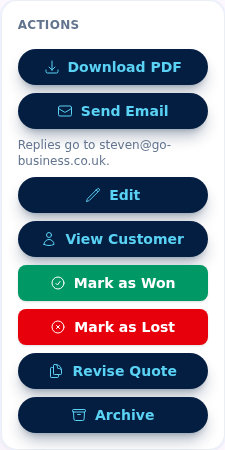
Edit changes the quote in place — same quote number, no new version. It only appears while the quote is still Created, so it is for fixing a quote before you send it (a typo, a price, a missing line).
Revise Quote creates a brand-new revision — a fresh copy with its own number that supersedes the original, while keeping the previous version and its sent history intact. Once a quote has been Sent, the Edit button disappears and Revise is the right tool, so you never silently change a document the customer has already seen.
Rule of thumb: Created → Edit. Already sent → Revise.
VAT, numbering & terms
If your organisation has a VAT number, VAT is added automatically. Quote numbers use the prefix and next-number set in Organisation Settings. Your default Terms of sale are appended to every quotation PDF.