
Project management
Project management software for small businesses that deliver client work
A client project rarely fails all at once. It drifts: a date slides, a delivery is waiting on someone, and the hours quietly run past what was quoted. Beagle CRM gives every project a status, a plan broken into phases, a team, and a timeline you can reschedule by dragging, so the drift shows up while there's still time to act on it.
The project sits on the same customer record as the quote that won it, and its drawings, specifications and sign-offs are filed inside it rather than in someone's inbox.
14-day free trial with every feature. No card required.
The problem
Why client projects drift
-
The plan is a spreadsheet nobody updates.
It was right on the day it was written and has been wrong every day since.
-
Nobody records what you're waiting for.
A job stalls on a late delivery or an unsigned drawing, and the reason lives only in one person's head.
-
Hours go over without anyone noticing.
You find out a job ran over the estimate when the final invoice is being worked out, not while you could still do something about it.
-
The paperwork is scattered.
Drawings in one inbox, photos on a phone, the specification on a shared drive, and the customer's sign-off somewhere in an email thread.
What's included
How a project runs in Beagle
-
A status that means something
Each project moves from draft and planned to active, then completed or cancelled, with two holding states for waiting on the customer and waiting on your own team. Every project gets its own reference, such as PR-00042.
Project statuses explained -
Phases with target dates
Split the work into ordered phases, each with its own target date and a status of planned, active, completed or skipped. Drag them into a new order when the plan changes.
Planning in phases -
Tasks on a board or a list
Every task can have an assignee, a start date, a due date, an estimate and a priority flag, and can sit in a phase. Drag cards across Backlog, To Do, In Progress, On Hold and Done.
Working with tasks -
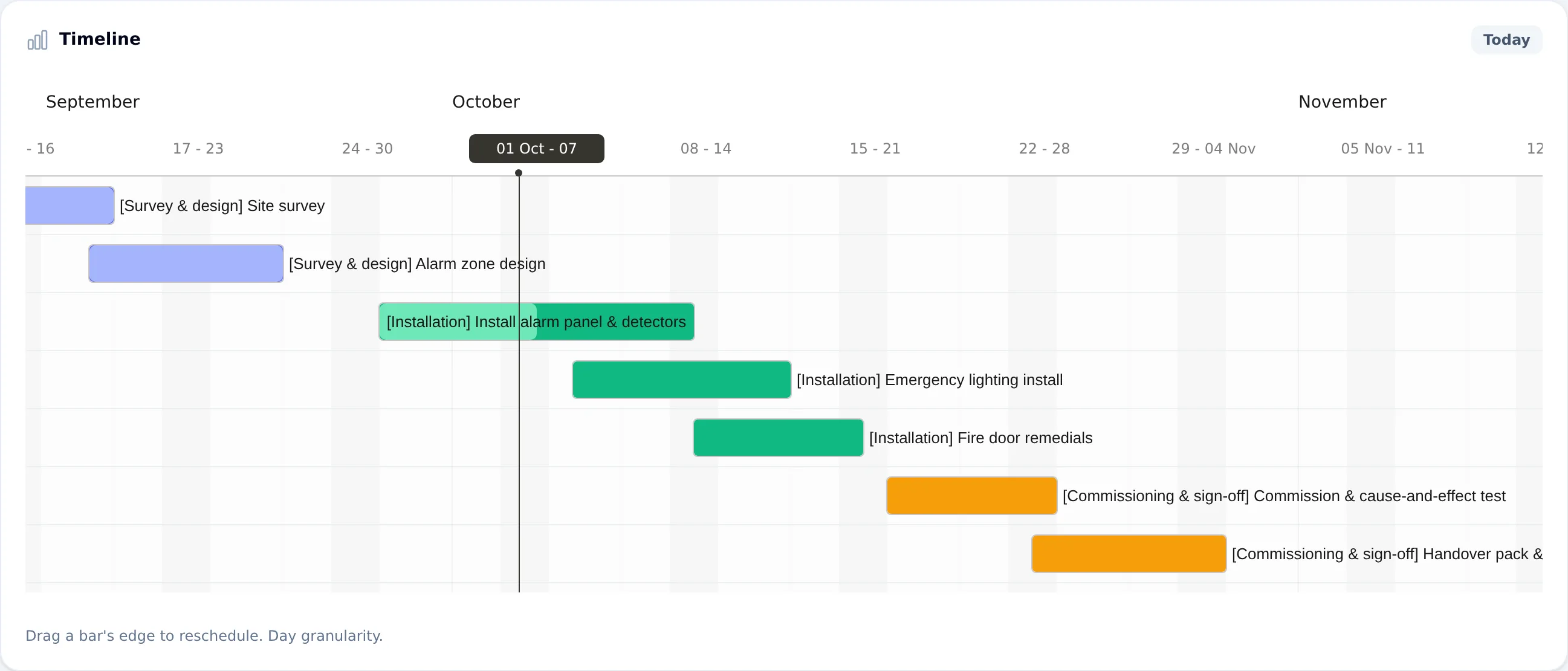
A Gantt chart you reschedule by dragging
Dated tasks appear as bars grouped and coloured by phase. Drag a bar's edge and the task's dates are saved; a Today button takes you back to the present.
Using the Gantt view -
Blockers with a reason
Mark a project, a phase or a single task as blocked, say why, and record whether you're waiting on the customer or on your own side. Beagle stamps when it was blocked.
Recording blockers -
A project team
Add colleagues as owner, contributor or observer. Make a project restricted and only its team, its owner, whoever created it and your admins can open it.
Project teams and visibility -
Templates for work you repeat
Save a finished project as a template, or build one from scratch, with phases, tasks and folders. Dates are set as days from the start, so a new project gets a dated plan from its start date.
Project templates -
Health, portfolio and workload
Each project is rated on track, needs attention or at risk, with the reasons listed: overdue tasks, a target date passed, blockers, two weeks with no activity, an approval still pending. Admins and Agents get a portfolio of every project at risk, blocked, waiting on a customer or due in the next 14 days, plus a workload table per person.
Project health and the portfolio -
Time against the estimate
Log time against the project, a task or a phase, marked billable or not. The time page adds up the task estimates and compares them with the hours logged, as a percentage over or under.
Logging time on projects -
Files, folders and written documents
Upload files into nested folders and pin the ones people need most. Write documents such as method statements in the app, with images and @mentions that notify colleagues, then download them as PDF, Word or Markdown. One button produces a project report PDF.
Project files and documents -
Approvals and file requests
Ask the customer to approve a stage, optionally attaching a file, and they're emailed. Ask them for a file you need and the request is closed when they upload it. Both are answered in the customer's project portal.
How the customer portal works -
Recurring tasks and reminders
Repeat a task daily, weekly, monthly or yearly, with an end date if you want one. Set a reminder and the assignee gets an email and an in-app notification when it falls due.
Recurring tasks and reminders
How it works
A shop fit-out, from order to handover
A shopfitting company has won the fit-out of a retail unit on a high street. Here is that job in Beagle CRM, from the accepted quote to the final sign-off.
-
Open the project from the quote.
The contracts manager opens the accepted quotation and starts a project from it. The customer and the link to the quote are already filled in, and they pick the company's "Retail fit-out" template.
-
Get a dated plan straight away.
The template brings in its phases (strip-out, first fix, joinery and counters, decoration, snagging), the tasks under each, and a folder structure for drawings and certificates. Every date is worked out from the start date the contracts manager entered.
-
Put the team on it.
The site supervisor and the joinery lead join the project team. Tasks are assigned, the bigger ones get estimates, and the board shows who has what.
-
Record the hold-up.
The counter units are held at the factory, so the joinery phase is marked blocked, waiting on internal, with the reason written down. The project health turns to needs attention and the reason is listed beside it.
-
Reschedule on the Gantt.
When a new delivery date is confirmed, the supervisor drags the counter installation bar out by three days. Nothing else moves on its own, so they check the decorating tasks that follow and drag those too.
-
Get the shop-front signed off.
The contracts manager uploads the signage drawing and requests the customer's approval with the drawing attached. The customer is emailed, and approves it in their portal; the team is notified.
-
Watch the hours.
The team logs time against the joinery and snagging tasks. The time page shows the job at 6% over the estimate before the snagging phase starts, which is early enough to have the conversation.
-
Hand over.
Snagging is completed, the project is marked completed, and the project report PDF (phases, task counts, time and written documents) goes into the handover pack.
Where it stops
What it doesn't do, stated up front
Beagle runs the project plan for a small team. It is not a construction scheduling suite.
- No task dependencies. Tasks can't be linked to one another, so moving one never moves the tasks after it. There's no critical path.
- The Gantt shows dated tasks only. A task with no start or due date stays off the chart, and dates move a whole day at a time.
- Time is logged, not timed. There's no running timer, and logged hours aren't turned into an invoice for you.
- Only Admins and Agents can change a project. Colleagues with the Viewer role can follow projects and download files, but they can't edit them, move tasks on the Gantt or log time.
- No money budget on a project. Effort is tracked in hours against estimates; there's no cost or budget figure on the project itself.
- Files keep one copy. Uploading a new drawing doesn't keep the previous version alongside it.
Pricing
One plan, every feature
£29 per user per month, or £290 per user per year (two months free)
Projects, templates, the Gantt chart, time logging and project documents are all in the one plan. There are no add-ons.
All prices exclude VAT.
Questions, answered
Frequently asked questions
- Can I see a project on a Gantt chart?
- Yes. Every task with a start or due date appears as a bar, grouped and coloured by phase. Admins and Agents can drag a bar's edge to change its dates, and the change is saved straight away.
- Can I link tasks so that one waits for another?
- No. Beagle doesn't have task dependencies, so rescheduling one task never moves another. Use phases to group work in order, and blockers to record what a task is waiting on.
- Can we reuse the plan from a job we've done before?
- Yes. Save any project as a template, with its phases, tasks and folders, or build a template from scratch. Starting a new project from it sets every date relative to the new start date.
- Can we compare time spent with the estimate?
- Yes. Put an estimate on each task and log time against the project, its tasks or its phases. The project's time page shows planned against actual hours, the percentage over or under, the billable split, and how many tasks have no estimate yet.
- Can the customer see how their project is going?
- Yes, if you invite them to the project's portal. They see only the phases, files and notes you've chosen to share, and they can comment, upload files you've asked for and approve stages. Access is by a link you send them, with no password to manage.
- Who can change a project?
- Admins and Agents can create and edit projects, manage the team and log time. Colleagues with the Viewer role can open projects and download their files but can't change anything.
Related
- CRM for service businesses Win the work, deliver it as a project and support the customer after, in one CRM. Service desk with SLA clocks, customer project portals and time logging.
- Quoting software Build quotes from your catalogue, discount any line, email a PDF with your logo and see when the customer opens it. Quoting software for UK businesses.
- CRM for small businesses One CRM for a small UK team: leads, customers, quotes, VAT invoices, a shared inbox and a service desk. £29 per user, every feature, 14-day free trial.
- Lead management Track every lead on a drag-and-drop pipeline, with a next step and due date on each one. Beagle CRM flags stalled deals. £29 per user, 14-day free trial.
- Customer portal Let clients follow their project, approve work, upload files, accept quotes and reply to support cases in a portal with your logo. No passwords to manage.
- Service desk Numbered support cases with priorities, owners and your own categories, SLA clocks in business hours, email replies and a no-login customer case portal.
- CRM reporting See pipeline, revenue, aged debt, product margins and a 12-month sales forecast on one reports page, with CSV exports. £29 per user, 14-day free trial.
Put your next client project somewhere everyone can see it
Try every feature free for 14 days with no card, or book a demo and we'll set up a project from one of your own jobs with you.