
Personal & team work
Tasks
Backlog → Done
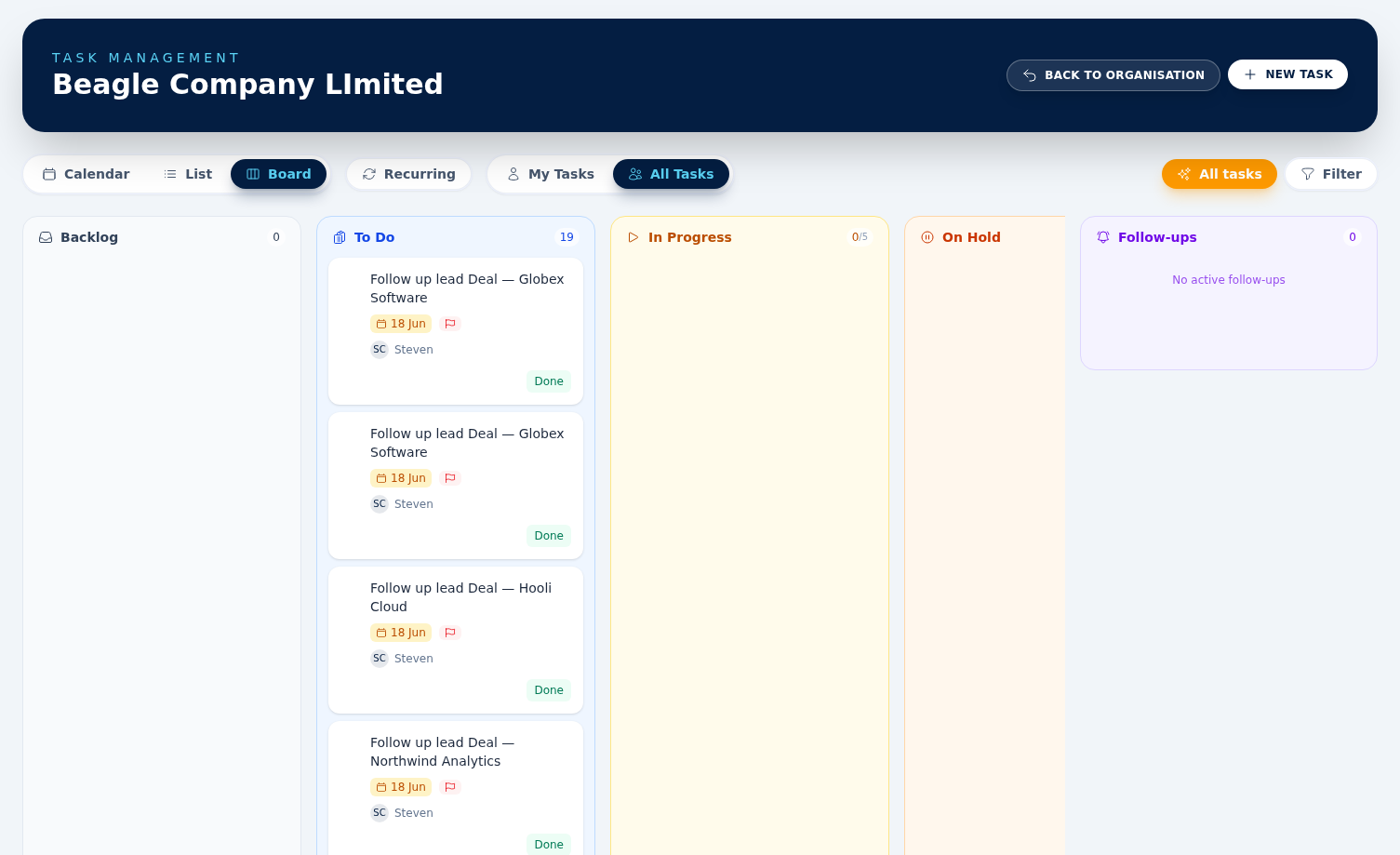
Tasks track follow-ups across leads, customers, quotations and invoices. Statuses are Backlog, To Do, In Progress, On Hold, Recurring, and Done. Lists are ordered by manual position first, then due date and due time; priority lifts a task above others that share the same schedule.
Where tasks come from
Create tasks manually, or BeagleCRM creates them from lead next-action dates and overdue invoices via automations. Tasks can also belong to customers, projects, and project phases, so the same work item appears in the right operational context.
Recurring tasks
Give a task a repeat pattern and marking it done creates the next one automatically, so housekeeping work (weekly check-ins, end-of-month review) stays on the list. It is the repeat pattern that drives this, not the task's status — and nothing repeats until the current task is completed.
Do not confuse the repeat pattern with the Recurring status, which is a separate thing. Recurring is offered in the status dropdown, but the board has no Recurring column and the list view shows only Backlog, To Do, In Progress and On Hold — so a task you set to Recurring drops out of both. It still appears on the calendar if it has a due date, and on the customer, lead or project it belongs to. Leave the status on the column that reflects the real state of the work and use the repeat pattern for repetition.
Board, calendar, and list views
The Tasks page has three working modes. Board groups tasks by status and supports quick filtering by search, assignee, and due window. Calendar shows due work by month, week, or day, including timed tasks. List gives a compact table for scanning, sorting, and opening tasks quickly. The toggle at the top of the page runs Calendar, List, Board.
Switching mode is not remembered on its own. To make one stick, click the star at the end of the toggle: it pins the mode you are in as your own default, and the page opens there next time. A solid amber star means you are already on your default; an outline star means clicking will pin this one.
Working a task in the side panel
Click a task on the board, list or calendar — or on a customer, a project's Tasks tab, or the mobile Tasks screen — and it opens in a side panel beside the list, with everything on one scrolling view: status, done, assignee, priority and due date at the top, then its checklists and notes, then its history. Changes save as you make them. On a phone the panel fills the screen; on a larger screen the list stays usable, so you can click the next task directly.
The arrows (or j and k) step to the next and previous task in the list you came from, and Esc or the cross closes it; the browser's back button closes it too. The panel's address can be shared to open that task directly. A checklist ticked or a note added by someone else appears in your open panel straight away. Use Edit all details for the rest — name, description, customer, project, schedule, reminder and repeat pattern — on the full task form, which brings you back to where you were when you leave it.
The full form also sets the project phase and whether weekends are allowed, and takes a single Due Date & Time picker. The owner is the person who created the task and cannot be edited. Checklist items can be ticked off and dragged to reorder, in the panel or on the form.
My Tasks, All Tasks, and your three pins
A pair of pills at the top of the page switches between My Tasks (only the tasks assigned to you) and All Tasks (everyone's). This is a different control from the Manual only / All tasks automation filter below, and the two combine.
There are three independent star pins, each saving one preference for you alone: one beside the Calendar / List / Board toggle for your default view, one beside the Month / Week / Day buttons (calendar mode only) for your default calendar range, and one beside the My Tasks / All Tasks pills for your default filter. Pin them in any combination; nothing else about the page is remembered.
Board columns and exports
Click a board column's header to collapse it to a narrow spine and click again to reopen it; Backlog and Done start collapsed, and your choice is kept in your own browser. The In Progress column carries a work-in-progress limit of 5: its header shows the count against the limit, and going over it turns the column amber with a WIP limit exceeded banner. It is a nudge, not a block — nothing stops you adding the sixth card.
Export PDF and Export Excel, on the list view, download the task list as a document or spreadsheet. The export follows the My Tasks / All Tasks pills; the search box, assignee and due-window filters are not applied to it. Note that both exports currently cover Backlog, To Do, In Progress and Done only — tasks sitting at On Hold or Recurring are left out, even though the list view shows On Hold. Check the totals before sending an export to anybody.
Manual only vs. all tasks
Automation-generated tasks (onboarding checklists, lead follow-ups, overdue invoice chases) can swamp the board, calendar and list when you have hundreds of customers. The Tasks page has a Manual only / All tasks toggle next to the filter button, showing the mode you are currently in. All tasks is the default, so automation output is included until you say otherwise. Click the button to flip to Manual only and hide automation-managed tasks across board, calendar and list views.
You can still see every onboarding task for a single customer on that customer's Success plan and Onboarding panels.