
Customer portal
A customer portal that shows clients what you choose and lets them act on it
Most of the questions a client sends during a job are the same few: how far along are we, what do you need from me, and is there anything I should be signing off. Each one costs somebody an email, and the answer is out of date by the following week.
Beagle CRM gives each client a page for their own project, carrying your name and logo, showing only the stages, tasks, notes and files you have switched on for them. From there they can approve or push back on work, send the files you've asked for and accept a quote. Support cases and unpaid invoices get their own links, so the client never needs an account or a password.
14-day free trial with every feature. No card required.
The problem
Where client communication leaks
-
Sign-off by inbox.
A design is approved in a reply buried four messages deep, and six months later nobody can find who agreed to what, or when.
-
Chasing for paperwork.
You ask for a survey, a plan or a photo, then ask again, and the file eventually turns up attached to a different conversation.
-
Status calls that interrupt real work.
Clients ring for an update because they can't see one, and whoever answers has to stop and go and find out.
-
Shared folders that overshare.
Handing a client a link to the job folder shows them your internal notes and draft pricing along with the thing you meant to send.
What's included
What your customers can do
-
Only what you switch on
Every phase, task, note, folder and file starts hidden. Flip each one to visible when the client should see it; anything else simply isn't there for them.
Choosing what the client sees -
In by link, no password
Invite a contact from the project and send them the link yourself. It must be opened within seven days and works once, through an Open your portal button, so an email scanner that checks the link first can't use it up. Their access then lasts up to 90 days, a new invitation renews it, and you can withdraw it at any time.
Inviting a client to a project -
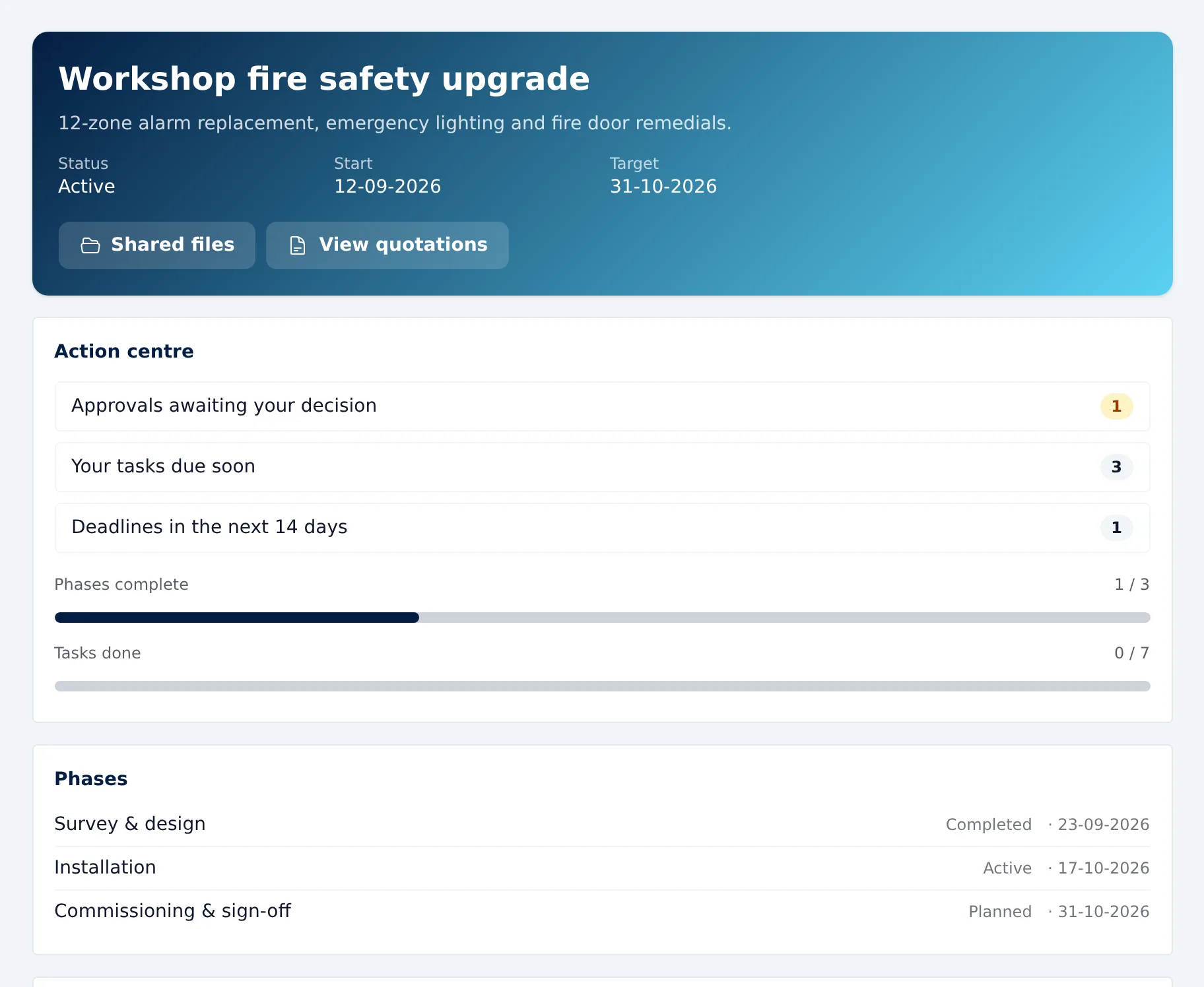
An action centre at the top
The client's page opens on what is waiting for them: approvals to decide, files you've asked for, their tasks due soon and deadlines in the next fortnight.
What the client sees first -
A Shared files tab
Folders, documents and files you've marked as visible appear under Shared files, laid out in the same folders your team uses. Anything still hidden, or inside a hidden folder, stays out of view.
Sharing files with a client -
Approvals with the file attached
Ask for a decision, attach the drawing or document it's about, and the client approves or requests changes with a note. Who decided and when is kept.
Requesting an approval -
File requests
Say what you need and the client is emailed. They upload it from the portal (PDF, Office files or photos, up to 25MB) and mark the request as provided.
Asking a client for files -
Tasks and comments both ways
Tasks you've shared can be ticked off by the client and commented on, and a comment box on the project keeps the general conversation in one place. Your team is told in the app and by email.
Client tasks and comments -
Quotes they can accept
If the project came from a lead, the client can open its quotes, see the lines and totals, and accept or decline with a reason.
Quotes in the portal -
A reply link for every support case
Each reply you send from a case carries a link to that case online. The customer can read the thread, reply with attachments, and mark it resolved or reopen it.
How the service desk works -
Pay by card from the invoice email
With Stripe connected, invoice emails and reminders include a link to pay the balance by card, straight into your Stripe account.
Card payments on invoices -
Your name, your logo
Set the brand name, contact phone and footer the client sees, and your organisation logo goes at the top.
Portal branding settings -
See it as they will
Preview portal opens a ten-minute, read-only copy of the client's view, so you can check what you've made visible before inviting anyone.
Previewing the portal
In practice
A house extension, seen from the client's side
Take a small architectural practice designing a two-storey rear extension for a homeowner. The commission is already a project in Beagle, created from the fee quote the client accepted.
-
Decide what the client sees.
An admin turns the portal on once for the practice. On the project, the architect ticks customer access, then makes the four stages visible (concept, planning application, building regulations, tender) and leaves the internal checklists hidden.
-
Send the invitation.
The architect picks the homeowner from the project's contacts and copies the link into an email of their own. The homeowner clicks it, presses Open your portal and lands on their project, with the practice's logo above it and no account to create.
-
Ask for what's missing.
The practice needs the boundary plan from the title deeds, so it raises a file request. The homeowner gets an email, uploads a scan of the PDF from their phone and marks the request as provided. The architect is notified.
-
Get the design signed off.
Two concept options are drawn up. The architect asks for approval of option B and attaches the elevation drawings as a PDF. The homeowner asks for changes: "Can the roof light move nearer the garden wall?" A week later a revised request is approved, and the date and the client's note stay on the record.
-
Share the planning drawings.
Once the drawings are final, the architect marks the planning folder as visible. The homeowner finds them under Shared files without anyone attaching them to an email.
-
Price the next stage.
The practice sends a separate fee quote for the building regulations package. The homeowner opens it under View quotations, checks the lines and accepts it there.
-
Keep them posted without a phone call.
When the planning application goes in, the architect adds a project note visible to the client. The homeowner is emailed that there's an update, follows the link straight back into the portal, and sees planning in progress with its target date.
-
Settle up and sort snags.
The stage invoice goes out with a card payment link. Months later, a question about a rainwater pipe becomes a support case; each reply from the practice carries a link where the homeowner can answer and, when it's fixed, mark it resolved.
Clear edges
What the portal doesn't do
Access is by link, not by login. A project invitation must be opened within seven days and works once; after that the client's access lasts up to 90 days, and inviting them again renews it. Links in approval, file-request and update emails bring the client back in while that access is valid; revoke the invitation, or send a new one, and every older link stops working.
Beagle doesn't send the project invitation for you. You copy the link and send it yourself. Each link is for one person and one project.
Colours are Beagle's, not yours, and the portal runs on Beagle's web address rather than your own domain. Your logo, brand name, phone number and footer text are what change.
Customers can't open new support cases from the portal; those still start by email. There's no invoice list or statement in the project portal either: each unpaid invoice has its own pay link, and card is the only online payment method.
Pricing
The portal is in the one plan
£29 per user per month, or £290 per user per year (two months free)
Clients you invite don't count as users and don't pay anything. Portals, approvals, case links and pay links are all included.
All prices exclude VAT.
Questions, answered
Frequently asked questions
- Do my clients need an account or a password?
- No. You invite a contact from the project and send them the link. It must be opened within seven days and works once; after that their access lasts up to 90 days, a new invitation renews it, and you can revoke it at any time. Support cases and invoices have their own links, sent in your emails.
- Can clients see everything on the project?
- No. Phases, tasks, notes and files are hidden from the client until you mark each one visible, and a file inside a hidden folder stays hidden. Use Preview portal to check exactly what they'll see.
- How do I stop someone's access?
- Revoke their invitation from the project's Customer access panel, and their next click in the portal is refused. Turning the portal off in Organisation Settings shuts every project portal at once. A support case link stops working when the case is closed.
- Can a client approve work in the portal?
- Yes. Raise an approval request, optionally with a document attached, and the client approves it or asks for changes with a note. You're notified, and the decision and its date stay on the project. It's a recorded confirmation, not a legal e-signature.
- Can the portal use my own branding?
- Partly. Your logo, a brand name, a contact phone number, footer text and your company details appear on the portal and on the emails it sends. The colours stay Beagle's and the address is Beagle's web address, not your domain.
- Can customers pay invoices through the portal?
- Not inside the project portal. If you connect Stripe, each invoice email and reminder carries its own link to pay the balance by card, and part-paid invoices keep their link for the rest.
Related
- CRM for service businesses Win the work, deliver it as a project and support the customer after, in one CRM. Service desk with SLA clocks, customer project portals and time logging.
- Quoting software Build quotes from your catalogue, discount any line, email a PDF with your logo and see when the customer opens it. Quoting software for UK businesses.
- VAT invoicing Invoice with VAT set per line, your VAT number on each PDF, card pay links, part payments, credit notes and CSV exports. Built for UK small businesses.
- Project management Run client projects in phases, with tasks on a board and a Gantt chart, blockers, time against estimates and project files. £29 per user, 14-day trial.
- Service desk Numbered support cases with priorities, owners and your own categories, SLA clocks in business hours, email replies and a no-login customer case portal.
Give your next client somewhere to look
Try the portal free for 14 days with no card needed, or book a demo and we'll set one up on a sample project with you.