
Delivery workspace
Projects
Phases · Tasks · Portal
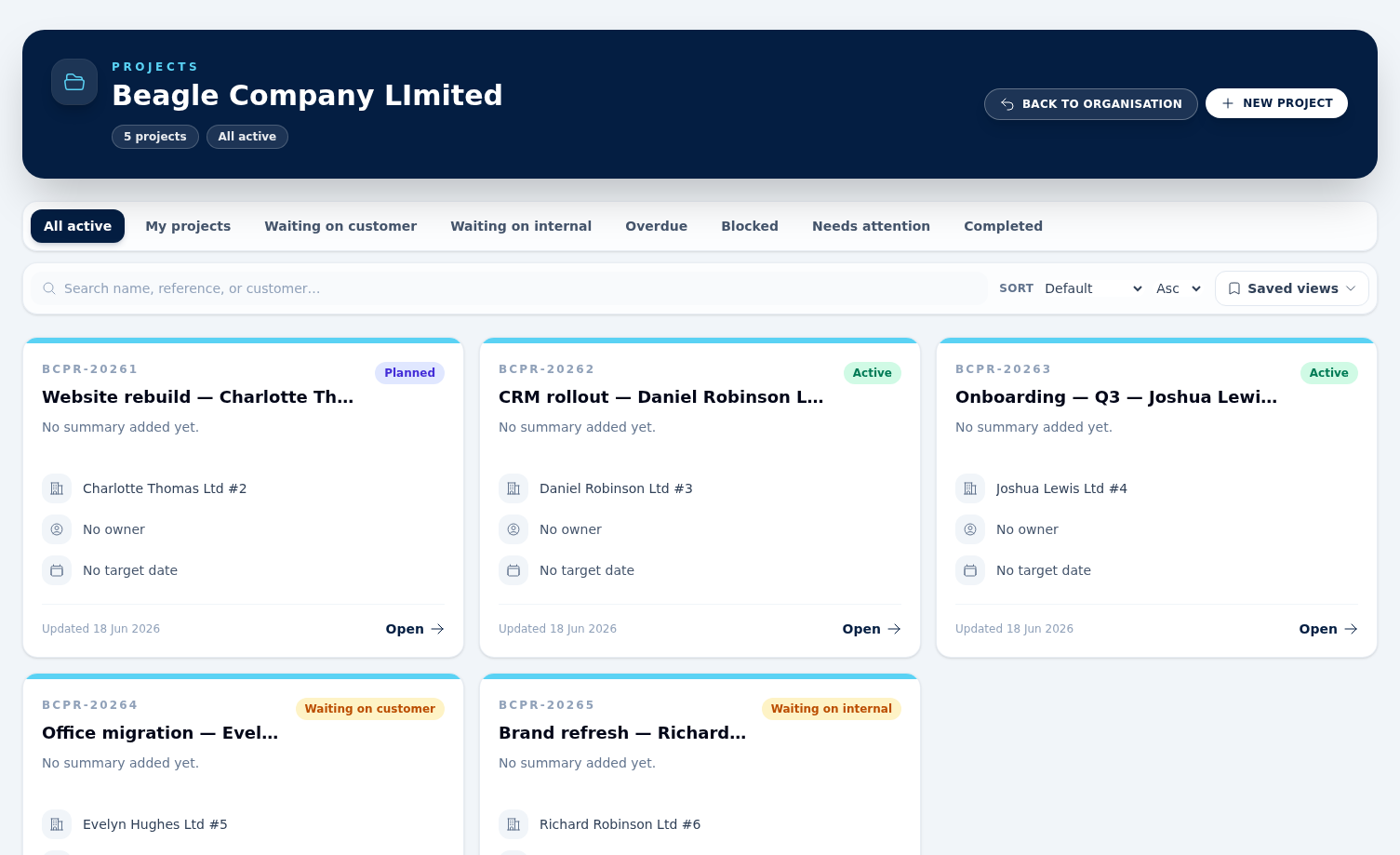
Projects are the delivery workspace for everything that happens after a sales order is accepted. Each project belongs to an organisation, is given an automatic reference from your numbering settings, and needs a name — the customer and target date are optional. A project also has an owner, an optional team of members, and a stack of phases that organise the work. Projects can be created manually or from a project template so repeated delivery plans start with the same phases and starter tasks. The project page is a tabbed shell with Overview, Phases, Tasks, Gantt, Files, Diagrams, Notes, Team and Activity tabs — switch tabs to drill into a specific aspect; everything stays in the same project context.
Overview tab
Snapshot of the project: customer, owner, target date, progress, the health badge, the Needs attention panel (see below), recent activity, phase progress and the customer-portal preview. Use this tab for a one-glance status check.
Phases tab
Add, reorder, complete or delete phases. Phases are the organising spine of the project — they group tasks, docs and time entries so a progress bar can be computed per phase.
Tasks tab
Lists tasks attached to this project. Each row shows: select checkbox, pin (priority) star, task name (links to the edit form), the assignee name (or Unassigned if no owner), the phase pill (or Unassigned if no phase), and the status. Use the phase filter pills above the list to scope to a single phase or to unassigned-phase work — the list reloads as you click. Select multiple rows to move them to another project.
The New task button inherits the active phase filter, so filtering by a phase first pre-fills the phase on the new task. Inside the form you can also pick the phase from a dropdown (No phase = leave unassigned).
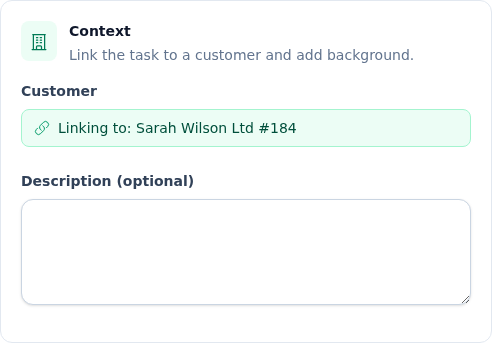
Each task can be linked to a customer (shown in the form's Context section). For a project task this is inherited from the project and locked — it renders as a green "Linking to: {customer}" badge you cannot change. Standalone and lead tasks instead expose an editable "Search customers…" picker so you can attach (or clear) the customer yourself.
Gantt, Files, Notes
Gantt renders tasks on a timeline keyed off start/due dates; drag a bar to update both. Files attaches folders, documents and uploads per phase (or unassigned). Notes is a chronological log of free-text updates, with mentions to notify team members.
Diagrams tab
Create flowcharts for delivery stages, handovers and decision points without leaving the project. Choose New diagram and a blank diagram opens in the editor, where you can start from a template such as Project delivery flow or go straight to adding and connecting shapes on the shared canvas. Admins and Agents can create and edit diagrams; Viewers with Projects access can open them in view-only mode. Diagrams on restricted projects follow the same visibility rules as the project.
See the Diagrams guide for templates, live collaboration, keyboard shortcuts and PNG export.
Document export
Open any project document from the Files tab and download it as PDF, Word (.docx) or Markdown (.md) from the File menu in the document header, which also offers Print. The menu appears while you are viewing the document, not editing it. PDF keeps the branded layout; Word and Markdown convert the document body for editing or reuse elsewhere.
Team tab
Invite team members and set their project role: Owner, Contributor or Observer. These labels record who is doing what on the project; what somebody may actually change is decided by their organisation role (Admin / Agent / Viewer) on the Team page, not by the project role. Membership does two things: on a restricted project only listed members can see it, and the last owner cannot be demoted or removed. Customer portal invites are not issued here — they come from the Customer access panel on the Overview tab (see Inviting a customer to the portal below).
Visibility — public or restricted
Every project is either Public (visible to all team members with Projects access) or Restricted (visible only to listed members, plus admins and the project owner). Set this from the Visibility field when you create or edit a project — only admins and agents can change it.
A restricted project is fully hidden from anyone who is not on its list: it does not appear in the projects list, dashboards or customer links, and it cannot be opened, exported to PDF or have its documents downloaded. Add the people who should see it from the Team tab; admins, the owner and the person who created the project always keep access. Restricted projects show an amber Restricted lock badge on their card and header.
Activity tab
Append-only audit log of every change to the project, phases, tasks, docs and members. The tab shows internal activity only — there is no filter to change what it includes.
Needs attention — how it works
The Overview tab has two separate signals that both use the words "needs attention" — they are computed independently and you can see one without the other:
-
Project health badge
(top of the overview header). It shows a state
plus a weighted severity score
(0–100, rendered after the label, e.g. At risk · 55).
The score is the sum of the weights of every contributing reason,
capped at 100; the state is banded from that score:
- At risk — score 40 or higher.
- Needs attention — score 10 to 39.
- On track — score under 10 (usually no contributing reasons).
Reasons carry different weights, in two bands of intent:
- Hard faults (40 each) — a passed target date, an overdue task, or a blocked project. Any one of these alone puts the project At risk.
- Stacking signals — a pending approval (15), too many open tasks near their deadline (15), waiting on the customer (10), the target date within 7 days (10), or no activity for 14+ days (10). These are expected mid-flight states, so they must stack to tip a project from Needs attention into At risk.
Note: blocking is applied to the whole project — the Block project button in the project header is the only place a blocker can be set. There is no way to block an individual phase or task from the interface, so those two health reasons cannot arise today.
Hover the badge to see the exact reasons that contributed. It is computed live from current state — there is no manual override; clear the underlying reason (unblock the project, push out the target date, log activity, resolve the approval) and the badge updates. The same score drives the Portfolio at-risk view (see below).
-
Needs attention panel
(further down the overview, above blockers). Has three sections:
- Overdue tasks — up to 5 open tasks whose due date is before today, sorted by oldest first.
- Upcoming (next 7 days) — up to 5 open tasks due today or within the next week.
- Blockers — the project itself when it is blocked. Because blocking is set on the whole project, this section lists at most that one entry.
The panel header itself flips between two titles to avoid false alarms:
- "Needs attention" (amber warning icon) — shown when there is at least one overdue task or at least one active blocker.
- "Tasks & blockers" (calendar icon) — shown when only upcoming tasks are populated (no overdue, no blockers). This is informational only, not a warning.
Important: the badge and the panel share some inputs but not all. A project can show "Needs attention" on the badge because the target date is within 7 days, while the panel shows "Tasks & blockers" because there are no overdue tasks and no blockers. That is by design: the badge is a forward-looking health indicator; the panel summarises actionable items right now.
Portfolio command centre
Agents and admins get a cross-project rollup at Projects → Portfolio. It answers “which projects need me?” at a glance, with four buckets and a per-owner workload table. It is read-only; Viewers are redirected away.
- At risk — projects whose health needs attention now.
- Blocked — projects flagged as blocked.
- Waiting on customer — projects in that status.
- Approaching deadline — target date within the next 14 days.
Every row carries the same health badge and score as the project’s own Overview — one authoritative measure everywhere. Hover a badge for its reasons; click a row to open the project. The Owner workload table below totals open, overdue and blocked projects per owner so you can rebalance load.
Project templates and time tracking
Project templates
Admins and agents can open Project templates to create reusable phase and task structures. A template can include phased tasks, unassigned starter tasks, target offsets, due offsets, and default assignee roles. Templates can be archived and restored without affecting projects already created from them.
You can also work the other way round. Save as template in the project header captures the project you are looking at: give the template a name and description and it stores the project's phases, its tasks (with their descriptions) and its folders. Documents, uploaded files and assignees are not copied. Admins and Agents see the button.
Project time
The project time page lists logged entries newest first and shows per-user totals. Log a date, duration, note, optional task, optional phase, and whether the time is billable. Entries are always recorded against you — there is no field for logging time on behalf of somebody else. Billable time is tracked for reporting only and does not generate an invoice automatically.
Planned vs actual. Set an Estimated effort (minutes) on each task and the time page shows a planned-vs-actual card: estimated against actual logged time with a progress meter, the variance (minutes and percent), an over/under colour cue, the billable split, and a count of any unestimated tasks. The project figure is derived live from task estimates and logged entries — there is nothing extra to maintain.
Inviting a customer to the portal
The customer portal lets a customer's contact sign in to a secure page and follow their project. Granting access is a two-step gate — both steps must be on before the invite form will offer any contacts:
- Enable the portal for the organisation (once). Go to Organisation Settings → Customer portal and switch Customer Portal on. This is an organisation-wide toggle and only needs setting once, and only an Admin can do it. Until it is on, invites are rejected with "Customer portal is not enabled for this organisation."
- Enable customer access on the project. On the project's edit form, tick Customer access enabled. The Customer access panel on the project page then lets you invite contacts.
- Choose a contact and send the invite. The contact dropdown lists the linked customer's contacts — so the project must have a customer, and that customer must have at least one contact. Pick a contact, click Invite, then copy the one-time link (shown only once) and send it to them. Active invites are listed below the form and can be revoked at any time.
If the contact dropdown is empty, check that the project has a customer and that the customer has contacts — add them under Customers → the customer → Contacts.
What customers can do in the portal
Beyond viewing their project, an invited contact can now act on it. Every action re-checks their invite, so a revoked or read-only preview link can only look, never change anything:
- Two-way messages. A customer comment notifies the project owner and members (in-app and by email). When you save a project note marked Visible to customer portal, the customer is emailed an update with a link back to their portal.
- File uploads. Customers can share files, which land in a Customer uploads folder on the project (attributed to the contact) and notify the team.
- Approvals. Use the Customer approvals card on the project overview to request a decision. The customer approves or requests changes in the portal, optionally with a note; you are notified and the outcome is recorded.
- Task interaction. On customer-visible tasks, the customer can tick them done (or reopen) and leave per-task comments. The team is notified of each.
All of these surface in the project's Activity and the staff notification bell. Staff-facing emails stay plain; customer-facing emails carry your organisation's portal branding.
Customer view — choosing what the customer sees
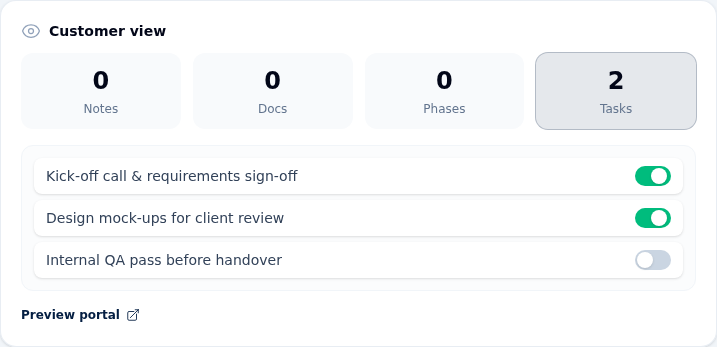
Linking a task (or note, doc or phase) to a customer is not what puts it on the portal — visibility is a separate, deliberate toggle. You control exactly what the invited contact sees from the Customer view panel (eye icon) on the project's Overview tab.
The panel shows four count tiles — Notes, Docs, Phases and Tasks — each counting the items currently visible to the customer. Click a tile to expand it and flip each row between Visible and Hidden. The Preview portal link opens the customer's actual portal view so you can check the result. Everyone with Projects access can see this panel; only Admins and Agents can flip the toggles, and Viewers see each row's current Visible or Hidden state read-only.
Ordering the projects list
The projects list opens in Manual order — a custom arrangement you set by dragging, shared across everyone in the organisation. Pick a different option from the Sort dropdown (Name, Target date, Status, and so on) any time; choose Manual order again to return to your saved arrangement.
To rearrange, hover a card and grab the grip handle (the icon centred on its top edge), then drag it into place. The new order saves immediately and updates live for anyone else viewing the list. Reordering is available to agents and admins; viewers see the same order but cannot change it.
Dragging is only enabled on the All active view, in Manual order, with no search term or column sort active — that way you are always reordering the full list rather than a filtered slice. Switch view, switch to a column sort or type a search and the cards become read-only until you clear it.
Recent project workflow improvements
- Drag-and-drop project ordering — the projects list now opens in a shared Manual order you set by dragging cards with the grip handle. See the Ordering the projects list explainer above.
- Choose what the customer sees — the Customer view panel on the Overview tab now lets agents and admins flip individual notes, docs, phases and tasks Visible/Hidden on the portal, with a Preview portal link. See the explainer above.
- Export documents to Word & Markdown — project documents can now be downloaded as Word (.docx) or Markdown (.md) alongside the existing PDF export, from the File menu in the document header.
- Assignee column on the project tasks tab — previously the row showed only the phase pill, which made an un-phased task look "unassigned" even when it had an owner. Each row now shows the assignee name between the task name and the phase pill, with "Unassigned" only when no owner is set.
- Phase selector inside the task form — when a task belongs to a project with phases, the form now exposes a Phase dropdown (with a No phase option) instead of a hidden field. You no longer have to filter by phase on the project page to inherit it.
- Phase filter pills reload the task list — clicking a phase pill on the Tasks tab now reloads the list immediately. Previously the URL updated but the list stayed stale until you refreshed.
- Attention panel header is now context-aware — the panel no longer shouts "Needs attention" when the only content is upcoming tasks. See the panel explainer above.