
Billing guide
Invoices
Draft → Sent → Paid
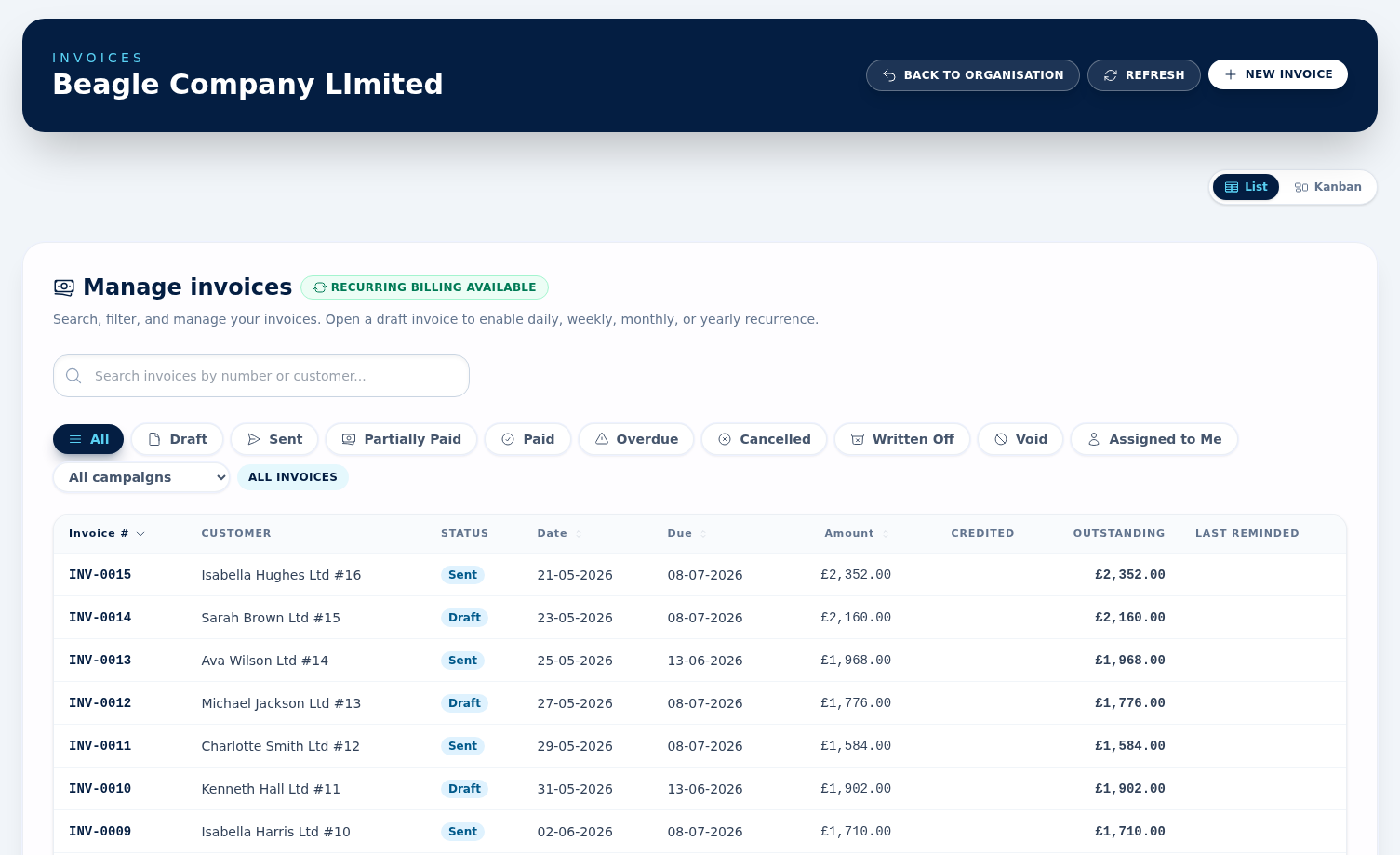
Invoices can be raised standalone, from an accepted quotation, or from a sales order. Statuses are Draft, Sent, Partially Paid, Paid, Cancelled, Written off and Void. Overdue sits alongside these as a filter rather than a status of its own — see Payment terms & due dates below.
Create a draft invoice
Choose New Invoice from the invoices list and pick the customer, or use Convert to Invoice on a sales order in Processing — that carries over the customer, line items, notes, and ownership for you. (The button only appears once the order has been moved to Processing and has no invoice yet.) Draft invoices can use an alternate delivery address when needed.
With the Purchasing module on, the product picker on a new invoice shows In stock: N under each stock-tracked product, in red once the figure is at or below the product's reorder level.
Sending invoices
You can Mark as Sent without emailing, or use Send Email to email the customer with the PDF attached. The customer must have an email address on file. Reply-to is set to the user sending the invoice; the from-name is your organisation.
Payment terms & due dates
Default payment terms come from Organisation Settings. Overdue is worked out live rather than written to the invoice: any invoice that is Sent or Partially Paid with a due date in the past counts as overdue. The status badge on the invoice does not change — it still reads Sent — but the invoice appears under the Overdue filter on the invoices list, and the detail page shows a “This invoice is overdue” warning above the document.
Recording payments
Use Record Payment to log a payment against the invoice — part or full. Mark as Fully Paid is the shortcut that settles the whole outstanding balance in one step. The invoice keeps paid, credited, and outstanding totals visible on the detail page, so partially paid invoices remain easy to chase.
Recurring invoices
Open a draft invoice to enable recurring billing. You can repeat it daily, weekly, monthly or yearly, set the next run date, optional end date or occurrence limit, and switch on Auto-send for generated invoices.
Reminders
Use Send reminder from the invoice when it is eligible for chasing. The invoice detail page keeps the reminder history, including when it was last reminded and who sent it.
Credit, void and recovery actions
You can create a credit note from the invoice or apply available account credit to reduce the outstanding balance. Admins can also Void an invoice with a reason — at any status, up until it is already void. The invoices list also shows credited amounts and the last reminder date.
Admins can also Write Off an invoice that was issued and is still owed — that is, one sitting at Sent or Partially Paid, including one that has gone overdue. A reason is required. Writing off keeps any payments already received, drops the rest as bad debt so it stops counting towards invoiced revenue and outstanding money, and cannot be undone. Drafts cannot be written off — delete them instead.
Invoicing moves stock
Invoicing a sales order takes its stock-tracked products out of stock. Nobody records an adjustment by hand: the order reaches Invoiced or Completed and BeagleCRM writes one Sale movement per product, referencing the order number, against the on-hand figure on the product page. A quantity such as 2.5 is rounded to the nearest whole unit and the rounding is written into the ledger note.
Void the invoice, cancel the order, or credit it with a credit note, and the units come straight back as a Return movement while the sales order drops back to Pending. Standalone invoices raised without a sales order do not touch stock at all.
Exporting your invoices
You own your billing data and can take it out of BeagleCRM at any time — for your accountant, your bookkeeping software, or your own records. There are three ways to export, depending on whether you want one invoice or many.
A single invoice as a PDF
Open any invoice and choose Download PDF. You get a print-ready
copy (Invoice-<number>.pdf) — the same document your customer
receives when you email it.
Many invoices as a spreadsheet (CSV)
Use this for accounting or analysis. It is one row per invoice, ready to open in Excel, Google Sheets, or import into your bookkeeping tool.
- Go to Reports and open the Invoices report.
- Set the filters (date range, status, and a Gross or Net tax basis) so the report shows exactly the invoices you want.
- Click CSV. The file downloads straight away, matching your filters.
Many invoices as PDFs (ZIP)
When you need the actual PDF documents in bulk — for an audit or year-end — export a ZIP of every matching invoice.
- On the same Invoices report, filter to the invoices you want.
- Click ZIP export. Larger exports are prepared in the background, so you can keep working — no need to wait on the page.
- When it is ready, a green Invoice export ready banner appears at the top of Reports with the invoice count. Click Download ZIP.
A prepared ZIP download stays available for 7 days, then expires — just run the export again if you need it after that.