
Customer support
Service desk
Cases & replies
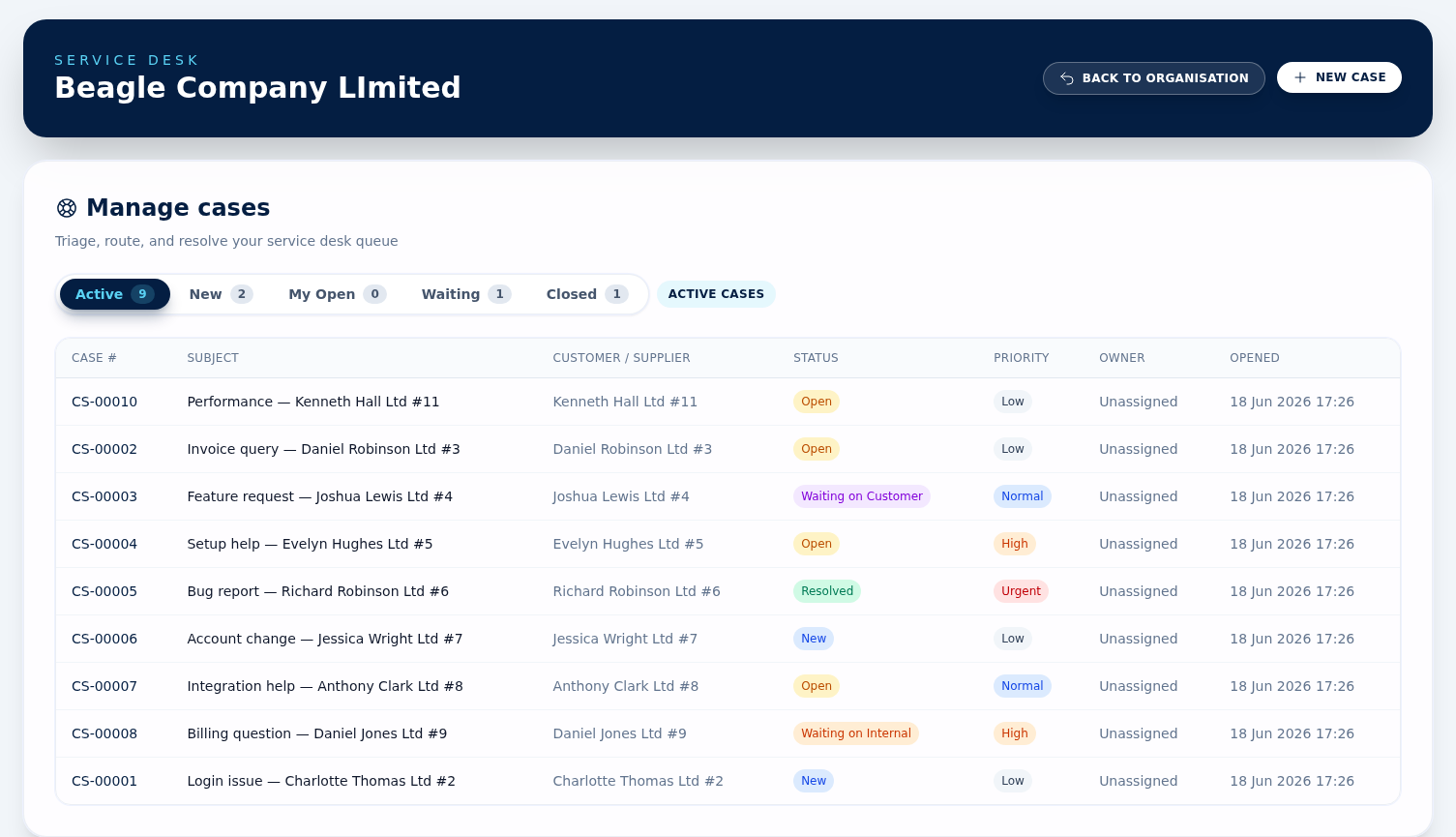
Service Desk tracks support work as cases. Cases can be created from your support inbox or logged manually by your team. Statuses are New, Open, Waiting on Customer, Waiting on Internal, Resolved and Closed. Each case also has a category, priority, an optional owner, and one linked customer or supplier. The queue tabs across the top of the case list are Active, New, My Open, Waiting and Closed; a dedicated Unassigned queue appears only once Service Targets are switched on, which they are not by default.
Inbound email → case
Configure your support inbox in Organisation Settings. Emails received there can create support cases, with the original subject, message body, sender, channel, originating email, and inbox account saved onto the case.
Log a case manually
Use New Case in Service Desk when the issue starts by phone, chat, or an internal handover. Set the subject, category, priority, summary, an owner if you already know who is picking it up, and then link the case to either a customer or a supplier. Give the linked contact an email address if you want customer-visible notes to reach them.
Queues and ownership
The main case list includes preset queues for Active, New, My Open, Waiting and Closed. Assign an owner when somebody is responsible for the next step, or leave the case unassigned until it is picked up.
Notes and customer replies
In the case workspace, add notes as either Internal or Customer. Customer-visible notes are emailed out — sent from your connected support email account to the case's contact (or the linked customer or supplier) email address — and replies to those emails can be added back onto the same open case automatically. If no support account is set up in Organisation Settings, or the case has no emailable contact, the note is still saved but nothing is sent. A support account can be a full inbox (receive & send) or send-only (SMTP, for providers like Proton with no server inbox); reply-by-email needs a full inbox, but customers can always reply through the portal link.
Case detail workspace
Open a case to edit the subject, category, priority, status, owner, and account links. A case can link to one customer or one supplier, not both. The workspace shows summary, details, linked account, opened/resolved/closed dates, notes, and related projects where available.
Priorities and categories
Priorities are Low, Normal, High, and Urgent. Categories are configured per organisation — the starter list covers general query, complaint, billing query, delivery issue, product issue, order change, return or refund, appointment change, account query, and feedback. An admin can rename, add, reorder, or deactivate categories and choose which one is the default under Organisation Settings.
Customer portal & contacts
Let customers follow and reply to their case online, and keep the right people in the loop.
Reply online (no login)
Customers can open a secure link to view their case conversation, post a reply, attach files, and mark the case Resolved (or reopen it) — no account needed. The page is white-labelled to your portal branding, and the link stops working once the case is Closed. Reply emails include a “View & reply online” button.
Primary contact & CCs
Each case has a primary contact (who replies are addressed to) plus any number of CC contacts kept copied in. Set or change the primary at any time from the case's Contacts panel — handing a case over demotes the previous primary to a CC so they stay informed.
Add the caller as a contact
Pick an existing contact of the linked customer, or create a brand-new one inline — handy for a phone call from someone new to the business. You can capture the contact when you first log the case, or add it later from the case page.
Portal links per person
Use Send portal link next to any contact to email them their own secure link; Revoke removes it. When you reply, each recipient gets their own personalised email with their own link, so a reply always posts back to the case as the right person.
Automatic status updates
Sending a reply to the customer moves a New, Open or Waiting on Internal case to Waiting on Customer — but only if the email actually goes out, so with no support account connected the note is saved and the status stays put. When the customer replies, a Waiting on Customer case moves to Waiting on Internal and a New case moves to Open; a case that is already Open, Resolved or Closed is left alone. Within those rules the queue and the status badge reflect whose court the ball is in, without anyone changing the status by hand.
Resolve before closing
Cases move through active statuses first. When the issue is complete, resolve the case with a resolution summary, then close it once no further work is needed.
Service Level Achievement
Service Targets
Service Targets put a clock on your support work — a first response target and a resolution target for each priority, measured against your business hours (not the wall clock). It is off by default: until an admin turns it on, the Service Desk behaves exactly as described above. When it is on, every new or updated case gets a live target with an at-risk warning and a breach flag.
Turn it on
An admin opens Settings → Service targets
(/orgs/<slug>/settings/sla), sets a
timezone and weekly business hours, adds any closures (bank holidays, shutdown days),
sets the per-priority targets, and saves. Editing later creates a new
version: changes apply to cases opened or updated
from then on
— a case already in flight keeps the targets and calendar it started with, so a
policy change never rewrites history. Disable
stops measuring new cases and hides the SLA panels and queues, but cases already
being measured keep their clocks — they can still tip into at risk, breach,
and send the matching alerts until they are resolved or closed.
Business hours & closures
Clocks only tick during your open hours — e.g. Mon–Fri 09:00–17:30 in your timezone. Evenings, weekends, and any closure dates you add don't count toward a target, and the maths is daylight-saving aware, so “4 business hours” means the same in summer and winter.
Two clocks per case
The first-response clock runs until your first customer-visible reply (the auto “resolved” note doesn't count). The resolution clock runs until the case is resolved and pauses automatically while the case is Waiting on customer, resuming when they reply.
On the case page
A Service targets panel shows each clock's target, time used, and a live countdown to the deadline, with a badge: On track, At risk (past 75% of the time), Breached, or Met. While the resolution clock is paused it shows Paused — waiting on customer instead of counting down.
Priority & reopening
Changing a case's priority re-points it at that priority's target and re-projects the remaining time — but it never clears a breach that already happened. Reopening a resolved case starts a fresh resolution cycle from the reopening time, while keeping the record that it was breached before.
Queues, dashboard & alerts
Once targets are on, the Service Desk gains risk-focused views and automatic nudges.
Extra queues & a dashboard
New case-list tabs appear: Breached, At risk, Response due, Resolution due, Unassigned, Urgent/High, On us, and Stale. A Dashboard button shows the count in each, with a CSV export for reporting.
Automatic alerts
A background check runs every few minutes: the case owner (and your Admins and Agents on a breach) get an in-app notification and email when a clock hits at risk or breaches. An urgent or high case left unassigned alerts Admins and Agents straight away, and they get a daily digest of any cases still breaching. Alerts don't repeat for the same event.
Older cases stay “not measured”
Turning targets on is prospective: cases that already existed are marked not measured and left out of the target queues and reports, so switching on never back-dates a breach onto historic work.