
Catalogue setup guide
Products & categories
Catalogue
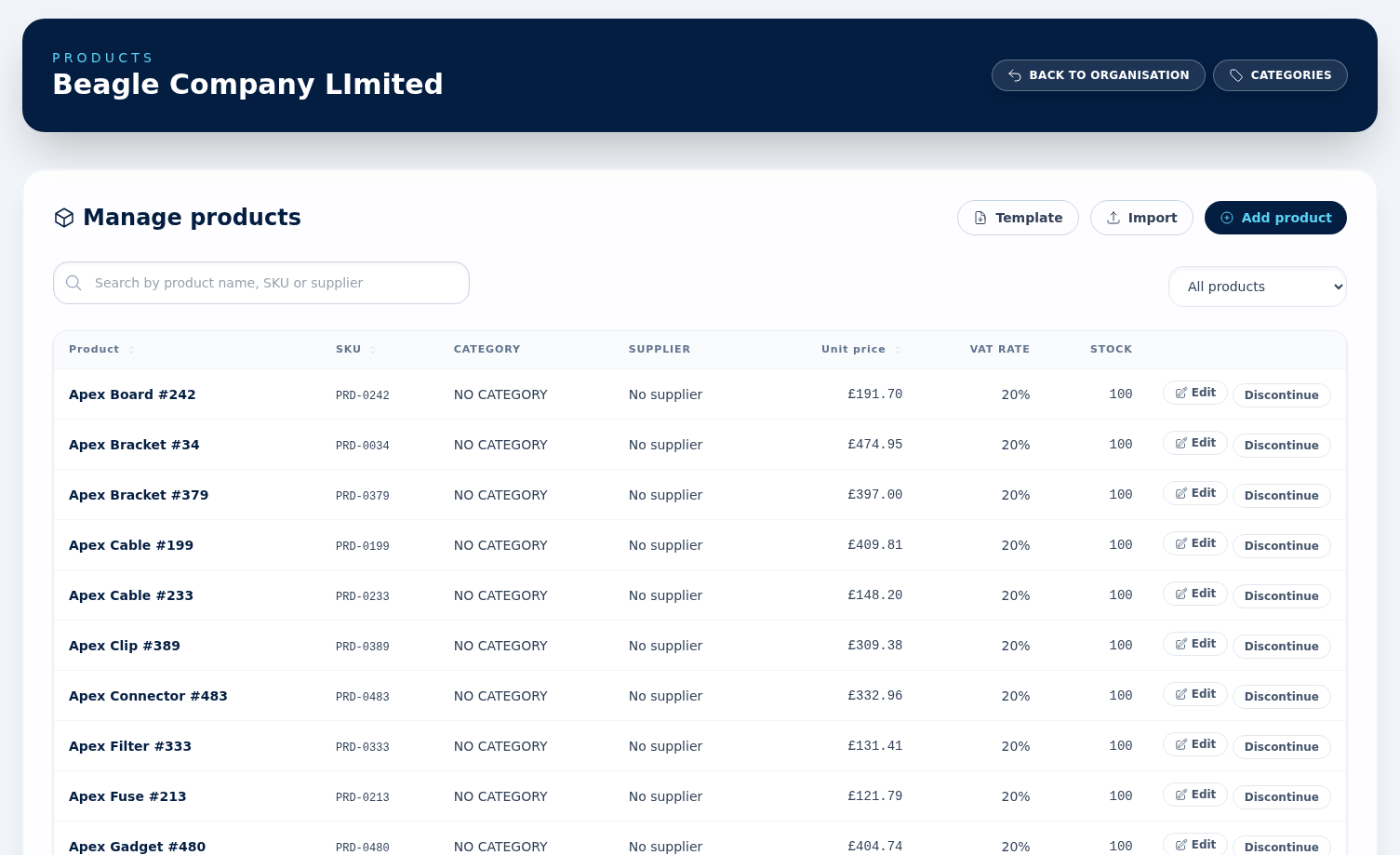
Products are the items and services you sell. Build your catalogue here so quotations, sales orders and invoices can pull pricing automatically. Use Categories to group products and tidy your catalogue list.
Create a category first
Open Categories and add the high-level groupings you sell. Categories can be created one by one or imported in bulk from an Excel .xlsx file with the same upload, preview, confirm, and error-export flow used elsewhere in BeagleCRM. Imported error rows can be exported as categories-import-errors.xlsx.
Add products manually
In Products, choose Add product. Capture the product name, SKU, category, supplier, unit price, and VAT rate. If your organisation does not yet collect VAT, products default to 0% VAT until you add the VAT number in Organisation Settings. The supplier field on the form is labelled Preferred supplier — that is the one a Raise PO goes to; any others are added from the product page.
Import products in bulk
Use the product import template to bring an existing catalogue across in one upload. Categories must already exist before products that reference them are imported. The product import uses the same upload, preview, and confirm flow, and failed rows can be exported as products-import-errors.xlsx.
Search, categories, and suppliers
The product list can be searched by product name, SKU, or supplier. When adding a product, you can search for an existing supplier and, if needed, jump out to add a new supplier before returning to finish the product. You can also create a new category directly from the category picker in the product form.
Several suppliers per product
A product can be bought from more than one supplier. The Suppliers panel on the product page lists everyone who can supply it, with their own SKU, lead time, minimum order quantity, pack size and the cost they last charged. Exactly one is marked ★ Preferred — that is the supplier shown on the product form and the one a Raise PO shortcut and low-stock alert go to. Press ★ Prefer on any row to switch. Removing the preferred supplier leaves the product with no preferred one until you pick another.
The panel is part of the Purchasing module, and access to it is set per person: if Purchasing is switched off for your membership, the product page has no Suppliers panel at all, even though a colleague sees one. Where it does appear, only an Admin or Agent can change it — a Viewer sees the same table, read-only.
Keeping supplier terms up to date
Link supplier adds a supplier to the panel: search for them, then record the terms you buy on — their SKU for this product, lead time in days, minimum order quantity, pack size and last cost. Edit on a row reopens those fields, and Save terms stores them. Remove unlinks the supplier from the product; it does not delete the supplier record. The first supplier you link becomes the preferred one automatically.
Catalogue hygiene before quoting
Product pricing and VAT are copied into quotations, orders, and invoices at the time you add the line item. Updating the product later will not rewrite historic commercial documents.
Selling moves stock as well as buying does. When a sales order is invoiced, every stock-tracked product on it leaves stock as a Sale movement referencing the order number, and the product's on-hand figure drops accordingly — nobody records that adjustment by hand. Cancelling the order, voiding the invoice or crediting it books the units back as a Return. So a movement you did not make is normal, and the reference column tells you which order caused it.
When a product should no longer be sold, use Discontinue rather than deleting it. A discontinued product stays on every document that already references it but disappears from new sales and purchases, and the list gains a Discontinued status filter so you can still find it. Reactivate puts it back. Deleting is only appropriate for a catalogue entry created in error.