
Pipeline guide
Leads
Track opportunities
Leads represent active opportunities with an existing customer. Each lead has a status, a source, a primary contact, an estimated value and a next action so you always know what is open, who owns it and what to do next.
Creating a lead
Choose New Lead, pick a customer, set the source and status, and link one or more existing contacts from that customer. If the customer does not exist yet, you can create it inside the lead flow. Mark one linked contact as Primary to record the main point of contact — a lead with no primary contact loses health points. Who actually receives quotation emails is controlled separately by the Emails tick-box on each linked contact.
Next action & follow-ups
Set Action Type, Action Due and notes so the lead appears on your tasks/follow-up list. Adding a note can also push the follow-up date forward.
Lead health & risks
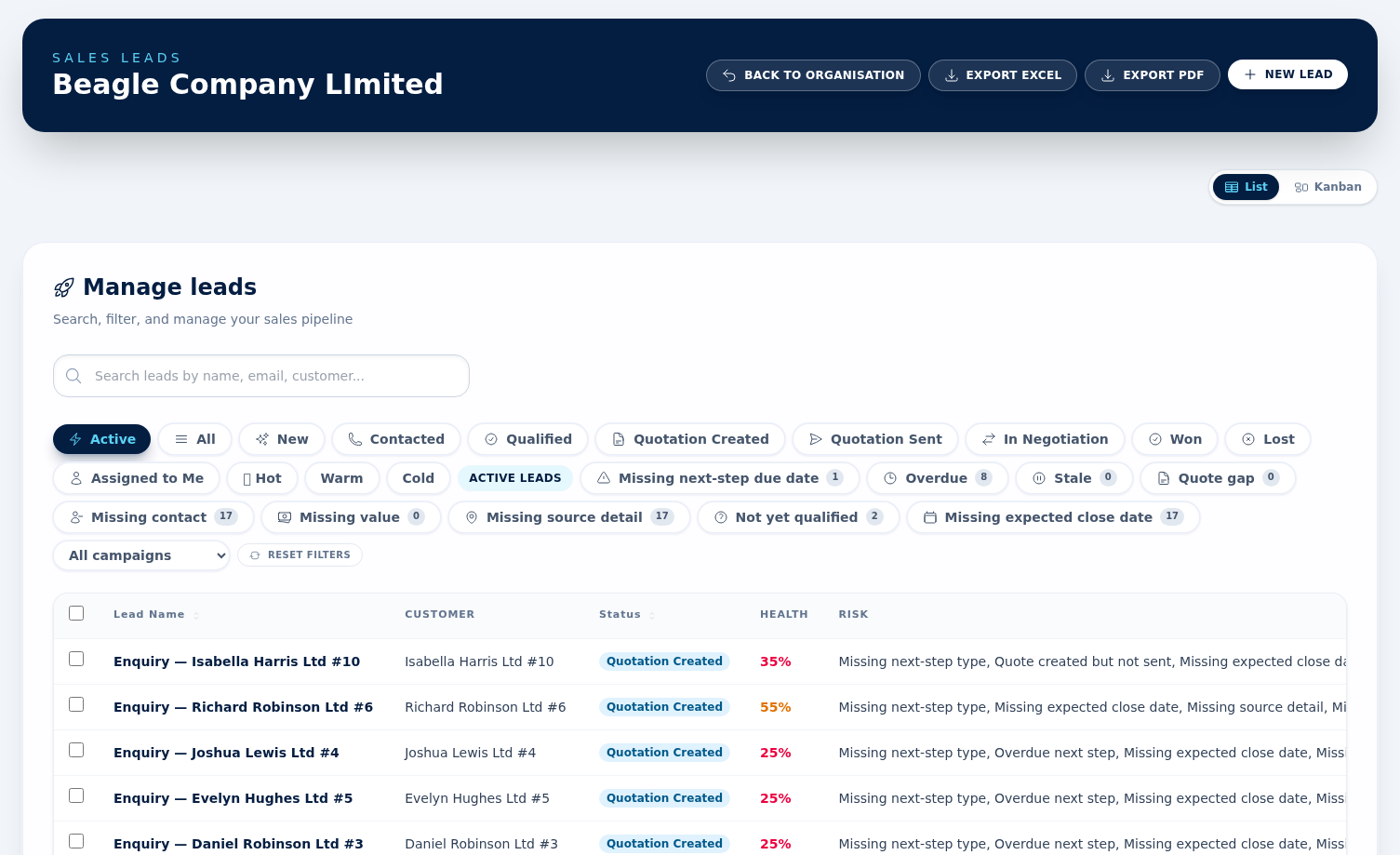
BeagleCRM scores every active lead from 0–100% based on commercial-quality and follow-up risks. The lead detail view shows the score plus the exact gaps to close. The leads grid also gives you a quick risk filter with live counts for each flag: missing next-step due date, overdue, stale, quote gap, missing contact, missing value, missing source detail, not qualified, and missing expected close date. See the deep-dive below for the full mechanics, weights and thresholds.
Filters, notes & export
Use the grid to search and filter by status, source, assignee, potential, and risk. Open a lead to add notes, review linked quotations, and export the current lead list to Excel or PDF with the active filters applied.
Map the deal with diagrams
Open a lead and use its Diagrams panel to map the buying committee, sales process or decision chain alongside the opportunity. Admins and Agents can choose New diagram; Viewers with Leads access can open existing diagrams in view-only mode. See the Diagrams guide for the complete editor workflow.
Closing the lead
Move the lead through your statuses (configured per organisation). Set Won or Lost with a reason; estimated value and stage history are kept for forecast and reporting.
How lead health is calculated
Every active
lead starts at 100%. BeagleCRM checks the lead against a list
of risk flags
— signs the lead is missing critical commercial
detail or is at risk of going cold. Each flag deducts a fixed penalty. The
final score is max(0, 100 − sum of penalties).
Active leads only. Once a lead is marked Won or Lost the scoring stops — the score stays at 100% because the deal is closed and risk flags no longer apply. This is intentional: closed leads should not pollute your pipeline-health KPIs.
Commercial-quality flags
These flag missing data that you need before a lead can realistically progress to quotation. They fire on every active lead until the field is populated.
| Risk | Triggers when… | Penalty |
|---|---|---|
| Not yet qualified | Status is still New or Contacted — the lead has not been moved to Qualified after enough discovery work. | −15 |
| Missing estimated value | No estimated value, or the value is ≤ 0. You need a working figure to forecast. | −15 |
| Missing expected close date | No Expected order date set. Without one the deal cannot land in the right forecast period. | −10 |
| Missing source detail | The free-text Source detail is empty. Helps trace what marketing or referral started the deal. | −10 |
| Missing primary contact | No contact on the lead is marked Primary. Quotations can still be sent, but nobody is recorded as the main point of contact. | −10 |
Follow-up & next-action flags
These keep momentum on the deal. They penalise leads that have stopped moving or have no scheduled action.
| Risk | Triggers when… | Penalty |
|---|---|---|
| Overdue next step | Action Due is set but is in the past. The biggest dock — it means the lead is actively neglected. | −30 |
| Missing next-step due date | No Action Due date set at all. The lead has no scheduled next contact. | −30 |
| Missing next-step type | No Action Type chosen (call / email / site visit / etc.). The owner has not decided what to do next. | −15 |
| Stale in stage | The lead has sat in its current stage for 14 days or more without progressing. Stage entry timestamp drives this. A lead parked for the future — an expected order date or an action due date still ahead of you — is exempt. | −15 |
Quotation-stage flags
Once a quotation is raised against the lead, the lead inherits two extra checks based on the quotation lifecycle. Both also depend on where the lead itself sits in the pipeline, so a lead left behind in an earlier stage will not pick them up.
| Risk | Triggers when… | Penalty |
|---|---|---|
| Quote sent — no follow-up | The lead is in Quotation Sent or In Negotiation, a quotation has been Sent to the customer, and the lead has no scheduled next step. Sent quotes need active chasing. | −25 |
| Quote created — not sent | The lead is in Quotation Created and every quotation on it is still at Created — none has been sent. Either send one or discard it. | −20 |
Worked example
A lead in Contacted with a primary contact, an estimated value of £5,000, no expected close date, no next-action type and no next-action due date would score:
100 − 15 (not qualified) − 10 (no expected close) − 30 (no next-step due date) − 15 (no next-step type) = 30%
That score immediately flags the lead in the Poor health filter on the leads grid and the dashboard risk widgets.
Filter thresholds
Two health filters are available, and they are cumulative rather than exclusive bands — a lead scoring 30% shows up in both:
- Needs attention — score below 80%. Anything with at least one meaningful flag.
- Poor health — score below 50%. Multiple risks compounding — either rescue or close the lead.
Both filters only ever return active leads.
Where the score appears
- Lead detail page — large indigo health badge with the per-flag risk summary underneath.
- Leads grid — a Health column (display only — it is not one of the sortable headers) and a Risk column listing the flags, plus quick-filter buttons with live counts for nine of the eleven risks. Missing next-step type and Quote created — not sent still count against the score but have no button of their own.
- Customer detail (Pipeline tab) — the customer-scoped leads grid shows the same Health column. There is no Risk column on this one.
- Dashboard — risk widgets aggregate the most actionable flags (overdue next step, missing next-step due date, stale in stage, quote follow-up gap) across the whole organisation.
Tips for keeping leads healthy
- Set Action Type and Action Due every time you finish work on a lead — the two flags together remove 45 points of penalty.
- Move leads out of New / Contacted as soon as they are real opportunities — the Not yet qualified flag clears immediately.
- Capture an Expected order date even if it is approximate. It feeds forecasting and clears another 10 points.
- Lost leads are not a failure — closing them with a reason removes them from active scoring entirely and keeps your pipeline KPIs clean.
Lead → Quotation flow
Quotations can be raised directly from a lead. Sending the quotation emails every linked contact that has the Emails tick-box on and an email address — which is on by default, so a lead with three linked contacts emails all three. Being the Primary contact does not change who is emailed. The quotation stays linked to the lead so won/lost outcomes update both records.
Bulk actions on leads
Select one or more leads from the list view (checkbox column on the left, or the header checkbox for "select all on this page"). A sticky action bar appears with seven options:
- Assign owner — bulk reassignment across reps.
- Change status — move every selected lead to a new pipeline stage.
- Add tags and Remove tags — apply or strip tags across the selection.
- Add to campaign — push every selected lead into a campaign as a member.
- Archive — set status to Lost with reason other. Reversible.
- Delete — permanent removal, admin-only. Cascades to lead notes and lead contacts. Quotations, sales orders and invoices raised from the lead survive — they keep their own records and simply lose the link back to the deleted lead.
Batches up to 25 rows run synchronously and refresh the list. Larger batches queue a background job with a progress flash and a final summary. Selection clears on any filter, sort, or page change.
Marketing consent on leads
Same per-channel opt-in, lawful basis, and provenance label as customers and contacts. The lead form renders the Marketing Consent fieldset; flipping any channel writes an append-only audit event. Required for any GDPR-compliant outbound to lead-stage prospects.
See the Customers section for the full audit + tokenised unsubscribe behaviour.