
Fulfilment guide
Sales orders
Pending → Completed
A sales order is the commitment to fulfil. Most orders arrive here on their own: marking a quotation Won creates the sales order for you, already at Confirmed, and emails the customer an order confirmation — there is no separate convert step to run afterwards. You can also create an order directly from the Sales Orders screen.
Status flow
The normal forward path is Pending → Confirmed → Processing. Once invoiced, the order moves to Invoiced and can then be marked Completed. Historic records may also show Shipped or On Hold.
One button drives each step, and it names the status it moves to: Mark as Confirmed, Mark as Processing, then Mark as Completed once the order is invoiced. The step from Processing to Invoiced has no button of its own — Convert to Invoice does it.
Search, filter & archive
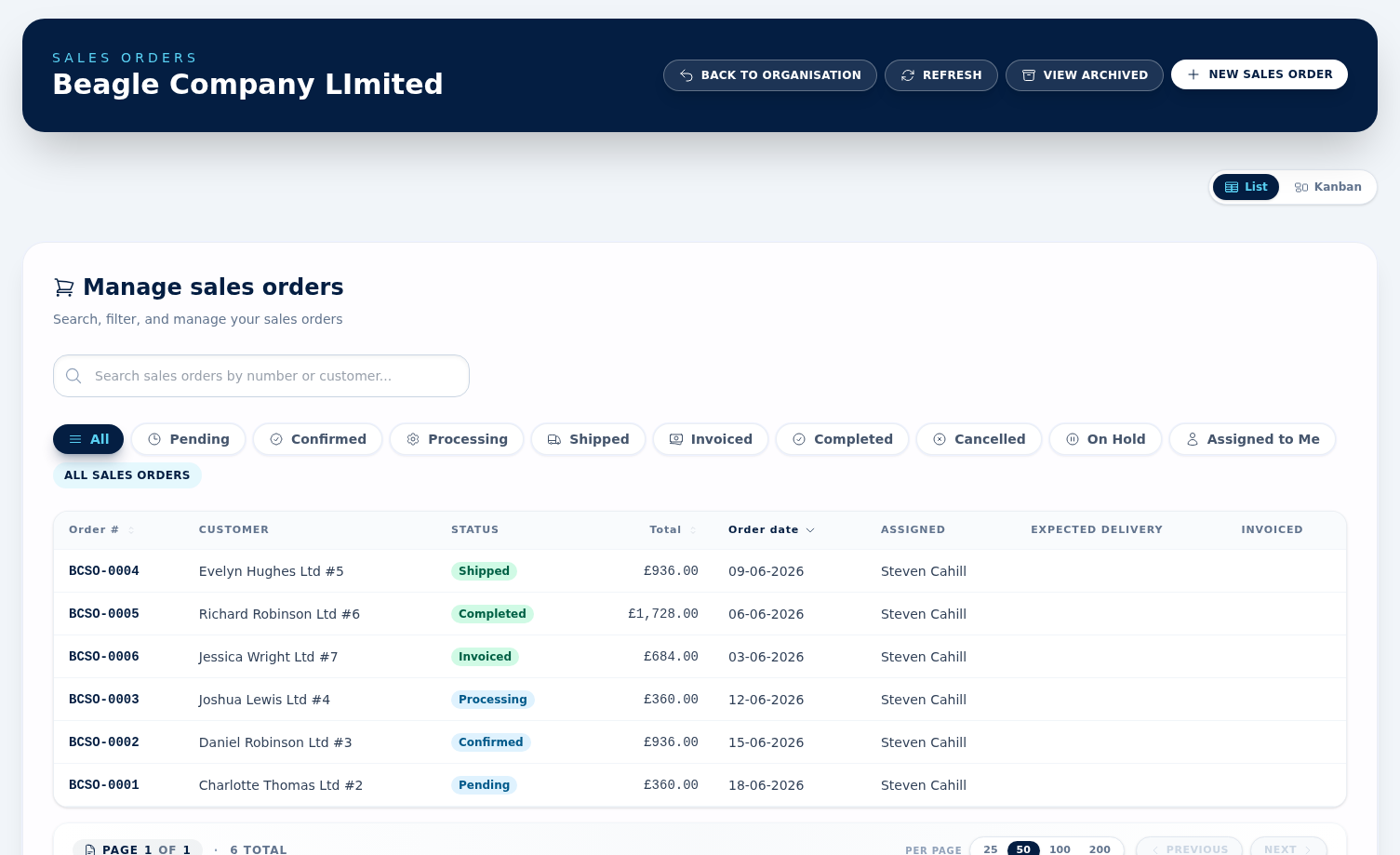
The orders list lets you search by order number or customer, filter by status, switch to Assigned to Me, and admins can open the archived sales orders view to restore older records. The status filters are All, Pending, Confirmed, Processing, Shipped, Invoiced, Completed, Cancelled and On Hold.
Convert to invoice
Convert to Invoice only appears once the order is in Processing and has no invoice yet. On a freshly created Confirmed order the actions are Download PDF, Edit, View Customer, Mark as Processing, Cancel Order and Archive — so move the order to Processing first, and the button appears. Converting copies the line items, customer billing details and pricing into a draft invoice ready to send, moves the order to Invoiced, and lists the new invoice under Related Documents on the order.
PDFs, cancellation & audit trail
Open an order to download its PDF or review the linked quotation and invoices. Admins can Cancel Order with a reason (not once the order is completed or already cancelled, and not while it still has active invoices — credit or void those first), and admins can Archive an order at any status when it no longer needs to stay on the main list.
Orders and stock
Nothing leaves stock while an order is Pending, Confirmed or Processing. The moment the order first reaches Invoiced or Completed — normally the moment you convert it to an invoice — every stock-tracked product on it is taken out of stock, one ledger movement per product with the reason Sale and the order number as its reference. It happens once per order, however many times the status moves afterwards.
When stock comes back
Anything that undoes the sale puts the units back with a Return movement: cancelling the order, voiding its invoice, or raising a credit note against that invoice. Voiding the invoice or crediting it also sets the order back to Pending so it can be re-run — and a credit note does that whatever its size, so even a small partial credit returns the whole order's stock and reopens it.